

- 424
- IGN
- videogamesm12
At work I have access to a variety of systems and hardware from different time periods. With the recent discontinuation of Windows 10 and the arbitrary system requirements of its successor, we now have a lot of systems which are still perfectly capable of modern day tasks but for can't run 11 officially without being considered a liability in the future, which we have to gradually migrate everything off of with time. I found a system that clearly hadn't been used in a long time and decided to take it home with permission. It is a Dell Optiplex 7010 in its ultra small form factor.
I picked up this computer for a few reasons.
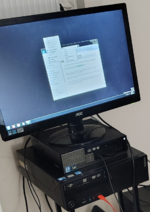
Notice the size difference of the two systems. I plan to use the system at the bottom as a server at some point.
This wasn't as big of a deal because I happen to have a burned copy of Windows 7 Enterprise lying around that I could use to reinstall Windows. It went off without a hitch and after installing drivers with what I believe was Snappy Driver Installer Origin, I now had a fully operational Windows 7 PC I could use to my heart's content. Activating and updating was a breeze thanks to unnamed forbidden tools and Legacy Update, and I even got to get ESU updates working for the most part. Now, I could use this thing for what I wanted, which was to record gameplay.
Despite my capture card being fairly new, Hauppauge continues to maintain and offer downloads for drivers and their Hauppauge Capture software which still works well with Windows 7 (minus some minor compatibility issues) on their website. Installing Hauppauge Capture and all that went by without much of a hitch aside from installing the .NET Framework, and now I had Hauppauge Capture running. I could have used OBS to record, but I actually find Hauppauge Capture to be slightly superior since it lets you adjust the bitrate of the capture and actually still works on Windows 7.
I decided to give it a whirl by recording myself playing Minecraft: PS3 Edition with @lyicx for my channel and honestly, it works perfectly. The picture is sharp and the framerate is smooth and stable. The results it has given have been more than satisfactory. For something that costs $129, it's genuinely mind-boggling how great this capture card is, and it works well with this computer.
Fast forward to the year 2025, and so much in my life has changed but my desire to have a media center PC was still burning as bright as ever. Now that I had a dedicated computer and a fairly reliable source of parts and income to facilitate my reckless spending, I decided to take this computer I got for basically free and use it as my media center PC. I decided to face up against one of the biggest obstacles preventing me from using Windows Media Center as was intended - the lack of a TV tuner card. While I initially expected to get it as a Christmas gift for 2025, I ultimately ended up just ordering one on Amazon for around $90 (including shipping and tax).
The TV tuner I ended up getting was also from Hauppauge - a WinTV DualHD USB TV tuner. It boasted compatibility with both modern applications like Plex and older applications like Windows Media Center, meaning it technically still worked on Windows 7.
I had to download the installer for WinTV and enter a product key for the latest version of WinTV just to get drivers going for it (which was fine, but still fairly annoying) and ignore some warnings about unsigned drivers (apparently a consequence of new code signing requirements) before things would get installed, but then I discovered that for whatever reason the card wouldn't get recognized by WinTV or Windows Media Center when plugged into certain ports. In fact, it would even bluescreen the whole system and would refuse to boot unless I physically unpluged the card.
However, I eventually got it working consistently by plugging the TV tuner card into the front USB port of the computer and using it that way, and after that things were... fine. Windows Media Center recognized the card immediately and started setting everything up and scanning for local channels using the inbuilt antenna. Everything in that field worked, but I then needed to do some extra work as Windows Media Center in a standalone state suffers from a minor case of software rot as the TV guide no longer works properly.
I decided to use an external program called EPG123 which takes information provided by a nonprofit service called Schedules Direct, converts the data into something that Windows Media Center can read, and provides it to Windows Media Center. While I initially struggled to figure out how to use the program, I figured it out eventually and subscribed to listings for OTA TV in my ZIP code. It works as a drop-in replacement for the built-in service Windows Media Center offers, so now my TV guide actually works properly.
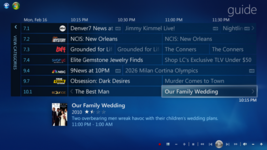
This fixes the issues with the TV guide, but another issue has since come up as of the making of this thread - CD ripping no longer includes metadata. In December 2025, Microsoft discontinued the endpoint that Windows Media Player (and by extension, Windows Media Center) uses to add metadata to CDs you rip using the program. Any CD you put in will just report as having no metadata, even when you rip them. While there is currently no way to fix this issue, the workaround for now is to use an external CD ripping program like Exact Audio Copy. I'll eventually look into seeing if any drop-in alternatives exist, but I'm not holding my breath.
While this was a painless process thanks to the fact I had a DisplayPort to HDMI adapter lying around, this shift in location had its quirks. I would need to set my antenna up in a spot where it would still get a strong enough signal for most channels, which I managed to pull off using a very jank process called "placing the antenna on top of the 1600 x 1050 monitor and hoping it stays on", which actually worked. Another matter I had to worry about is how I'd control the computer. Given the distance from the computer to my bed, I'd need either a really long USB cable for the keyboard and mouse or I'd need to figure out a wireless solution. We'll get back to that in a later section.
This actually worked better than I expected. The picture isn't 1080p, but the picture looks a lot sharper in 1360x768 anyways, so I'm not too concerned.
In the past, you could actually use it on any desktop computer by simply going to https://www.youtube.com/tv, but at some point in late 2019 they stopped letting you do this and attempting to navigate to it now simply redirects you to the desktop YouTube. However, you can actually disable this redirect entirely by spoofing your browser's user agent to one belonging to either a smart TV or a game console. This tricks Leanback into running anyways and it treats your tab more or less like as if you're on such a device, minus the platform-specific controls.
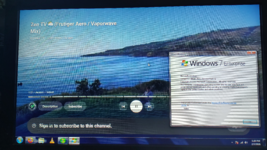
Windows 7 elements (taskbar, winver) are usually hidden, but are shown here to show it can run on a desktop operating system just fine
To streamline this process, I set up a shortcut using Relaunch (a program which lets you set up shortcuts to any program you want and put them in the Extras part of Windows Media Center) to launch a Firefox instance with the user agent already set. I could have just left it at that and it would have been probably fine, but I am a perfectionist who wants user-facing simplicity above all else, so I actually set up everything in a separate, dedicated profile configured with the user agent and installed UBlock Origin and configured the shortcut to launch this profile specifically in Kiosk Mode, which makes it launch in fullscreen mode with some of the traditional shortcuts disabled. Despite the lack of native controls (which can be mitigated, see the next section), the rather seamless transition and inclusion of an ad-blocker makes this experience somewhat better than the official client on most smart devices, especially given how absolutely unbearable it can be with ads.
I eventually want to figure out how I can do this with other streaming services if possible, because that would be pretty awesome to pull off.
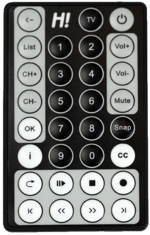
It's about as small as a credit card in person.
If you want to have a proper remote setup that works with Windows Media Center more natively and are willing to split with some cash, Hauppauge offers a much better remote kit for around $30 on their website which is more feature packed and offers a lot more features. For example, it comes with a dedicated IR blaster and receiver unlike what you get with the kit I got.
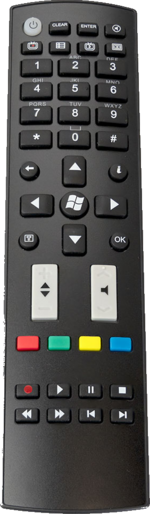
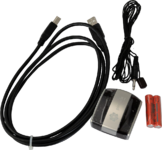
No Pkcells? 0 Stars.This sounds nice, but what if you're a cheap nerd like me who is willing to put in the effort to get a similar experience using the resources you have on hand? Well, it turns out that the built-in receiver in the TV tuner does have some compatibility with Windows Media Center as it will register some inputs and perform their equivalents in WMC, so you can technically use more than just WinTV with this remote. Furthermore, many universal remotes sold on the market today have dedicated codes for various Media Center compatible remotes, so in theory you can use a regular universal remote to do things in Windows Media Center that you can't do on the remotes it comes with without needing a dedicated IR kit. However, in practice it's a bit more complicated than that for a few reasons.
Since EventGhost has a built-in plugin specifically for hooking into Hauppauge's IR sensor API and reading its signals, I figured I could use it to control how my remote inputs get picked up and handled. The main motivator was to be able to control my YouTube TV client with my universal remote so I don't have to constantly get my keyboard out. I thought I could simply implement the controls or at least emulate what they should be by making it either send keystrokes to the Firefox window. However, for some reason the plugin couldn't actually find the DLL file it needed to hook into Hauppauge's systems. As it turns out, the plugin's code is ancient and relies on registry keys that simply don't get written to anymore. I only found out about this after debugging the plugin myself with Wordpad (I didn't have Notepad++ installed yet) and patching it to use a hardcoded path to the DLL file instead instead of the silly business it was doing. It seems that I'm never free from the curse of having to debug other people's code, not even while trying to set up a media center. I have since created an issue on EventGhost's GitHub about this. After struggling to figure out why EventGhost wasn't picking up my patched version whatsoever and trying to figure out how to use the program, I started work on a series of macros to emulate the controls YouTube Leanback expects with a remote. I didn't want to implement too much because it was 12 in the morning and I wanted to get to bed at a somewhat reasonable time.
Fast forward to about 2 hours later, and I had reimplemented a good chunk of that Hauppauge's own IR program was doing but with EventGhost and added some extra features like a dedicated "screensaver button". Not only was YouTube now working with my universal remote, but so was Windows Media Center. I still have a lot to do, like controlling standard external programs with the remote, turning the display on again after a long period of inactivity, and implementing a bunch of buttons present on the credit card remote that aren't present on my universal remote.
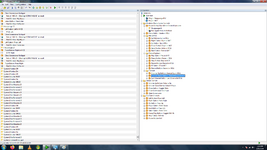
Hey, at least it works for the most part!
When I'm finished, I'll probably post a download link so that anyone in the same situation as me can download my configuration and use it.
This actually has a bunch of possible use cases beyond sharing family movies. You could burn family videos onto DVDs and share them with friends and family. You could back up your entire digital media library onto something more physical in the event something were to go horribly wrong with your system. You could share an episode of SpongeBob that had just aired the night before with some friends. You could even free up space on your system if it was running low on space (after all, common hard drives of the time were nowhere near the capacity they are now) by offload some old recordings onto a couple of blank DVDs you might have lying around. This feature may seem strange or silly at first, but it's important to note what the competition was at the time and what they let you do. Microsoft was trying to compete with consumer DVRs like Tivos, standalone DVD recorders, and VCRs all at the same time. Some Tivo models even had DVD recorders built into them which let you transfer recordings onto DVDs, and pretty much every model let you transfer your recordings onto VHS. Once you factor those in, having a feature like this in WMC makes a lot more sense.
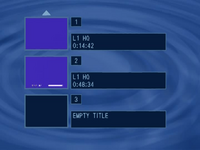
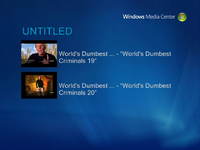
My only complaint is that the burning process initially takes a bit. WMC has to first re-encode your recordings or videos into something that a DVD recorder can understand before it can start writing the data to the disk, and even then it seems to take a while to write the data too. It does eventually finish, though. DVDs burned with Windows Media Center have a menu resembling that of other consumer DVD recorders of the time (shown on the left), but styled with WMC branding (shown on the right), which is a nice touch.
Windows Media Center can also supposedly burn CDs as well, but it seems to be fairly finnicky on what you can and can't burn. I really don't fault Microsoft for this. This was around the same time that the absolute parasites of the music industry (particularly the RIAA) were acting far too big for their shoes and bullying technology companies into stifling innovation because they were convinced that MP3 files were like the boogeyman that was going to destroy them and eat them alive. Needless to say, I viciously and vehemently despise these people. However, the blame isn't entirely on them this time as it seems that codecs have a hand in this. I can't seem to get FLACs working without it complaining about licensing or something and 320 kbps MP3s just don't burn at all for some reason. Even WAVs seem to be a bit finnicky, so I have no idea what's going on.
The first matter I had to address was fairly straightforward - where am I going to put everything? I could purchase a DAS, sacrifice a spare external hard drive, upgrade the computers internal storage with a 1 TB SSD, or use a NAS to host everything. Each had their own benefits and drawbacks, but I ultimately decided to just make a dedicated locked down user account on my NAS with its own folders for storing music, movies, TV shows, etc and then simply mount its home folder as a network drive with SMB on the desktop. This would be easy to scale up, would have good enough compatibility, and would be the least painful to set up and maintain. It was. After adding the network drive and including the relevant folders in WMC's libraries, adding media to the library was as simple as copying the files to their relevant folders from my main system onto the NAS and waiting for Windows to update its indexes.
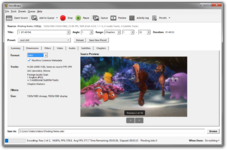
The second matter was encoding and compatibility. Since my massive collection of liberated media takes up a lot of space, I want to minimize how much it actually uses by re-encoding films from my backup drive and compressing them where possible to reduce the footprint on my NAS. Music isn't a big deal as an album in FLAC format usually only takes up a few hundred MB at most, but movies and TV shows need some extra work. However, I need to be careful what formats I use for encoding as Windows of this age may not take too kindly to some of the more efficient but newer encoding formats. To maximize compatibility, I installed a few extra utilities and codec packs so that Windows Media Player (and by extension, Windows Media Center) can recognize some of the never formats and try to play them back. To get FLAC files to show up in the music libraries, I installed a plugin for Windows Media Player called WMP Tag Plus, which can be downloaded here. For playback, I installed the free K-Lite Codec Pack, which allows WMP and WMC to play back certain file formats like MKV and MP4. For the re-encoding part of things, I'm still experimenting but so far I've been using Handbrake set to use my GPU as the video encoder, crop the video to get rid of the black borders, and spit out an MKV file a fraction of the size of the original. Some movies are more cumbersome than others, so in those cases I have it set to reduce the "constant quality" setting by like a few points from 17. Anything lower tends to use up too much space and anything higher just kind of looks bad. I still have yet to figure out closed captioning as it for some reason just doesn't work for me unless I use SRT files from somewhere like opensubtitles.org. I'll have to investigate that more deeply.
Certified hood classic
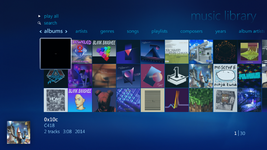
The third matter, however, was a lot more of a headache - metadata. I'll be honest and say Windows Media Center sucks when it comes to managing metadata for music, movies, and TV shows. With music, it used to automatically pull metadata for music whenever you'd rip a CD with WMC, but as I mentioned before now it just results in unknown albums by an unknown artists with generic track names. This isn't a big deal because WMC just uses whatever metadata an audio file has etched into it and if no such metadata exists, external programs like Exact Audio Copy and MusicBrainz Picard (which both still work on Windows 7 to this day) can do the trick and arguably do a better job at it anyways.
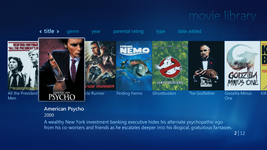
However, with movies and TV shows it's a massive headache. Movies and TV shows that weren't recorded from TV using the program or aren't actively in the computer's DVD drive lack any form of metadata whatsoever. This is likely to avoid legal headaches that could come from automatically adding metadata to movies and TV shows in your library that weren't obviously legally obtained. As such, movies that don't have any metadata at all simply show up as the file/folder name the film is in and an automatically generated generic cover. It's still perfectly functional, but it looks really out of place amongst movies that you recorded from TV which do have metadata. If you want something that looks presentable and pretty, you need to put in the extra work to do it. The only problem is finding software to do it. I tried three pieces of software I found online and the results varied greatly.
I have a lot more than this, but it's a time-consuming process to encode each individual film and then get metadata for them.
All in all, this is a perfect use case for a liberated media library, even if it takes some extra work to get going. It honestly feels satisfying to do all the hard work yourself and then see the results for yourself. Since many companies still air movies on over the air television, this is also a great way to passively liberate even more movies and add to an ever growing collection. It's genuinely a win-win.
I can't stress enough how important this decision was. It made the prospect of setting up a media center a lot more accessible to the average consumer as they didn't have to go out and buy a PC specially made with the explicit purpose of being a media center. Anyone could just get a decent enough computer running Windows Vista or 7, buy some additional hardware from companies like Hauppauge and plug them into their existing setup, and within minutes they have a working media center PC that can play music, watch movies, and record live TV from either satellite/cable or over the air TV. You could even buy a Bluetooth keyboard which had a "mouse" on it that was specifically designed to be for media centers without having to get one with a special computer. Maintaining it was also far easier as you didn't need special drivers, updates, or hardware catered for your particular version of Windows. It literally just works.
Sure, there were still some quirks in the system like the unreliable extender functionality which I still can't get working for some reason, but aside from that and some other minor things either related to copy protection shenanigans, Windows Media Center has been relatively painless and a lot less confusing than even some more modern equivalents.
I'm honestly so happy I was able to bring this lifelong dream I've had of setting up a dedicated media center box and using it like how it was intended so many years ago, even if it took some extra legwork to get there. I look forward to using it more often whenever I want to watch a movie or something.
Thanks for reading.
I picked up this computer for a few reasons.
- It could run Windows 7 in EFI mode without issues. This is surprising to me because newer systems struggle to handle Windows 7 in this type of boot method without third party patches and older systems just straight up didn't support it. Most people would just install 7 in legacy boot mode to avoid all these headaches, but I found it intriguing.
- It is small, but powerful. This is a very small computer, and yet it still manages to cram in a third generation i5 and 8 GB of DDR3 RAM. I had no intentions to use it for gaming, but despite its rather lackluster integrated graphics it is still handles most modern web browsing, video playback, and video recording just fine. This comes in handy for the next reason.
- I had two use cases for it in mind that I knew it would excel at - a recording device for my game consoles and a media center PC. My room is laid out in such a way where my video game consoles and TV are far away from my main desktop system, but I still wanted to record gameplay for my YouTube channel using these systems. I'm sure I could get a long USB cable and connect my capture card to my desktop with this, but I felt like a dedicated system for recording stuff like this would do a much better job and wouldn't require me to use my main system to do it. I also wanted to finally experiment with Windows Media Center and use it to its full potential properly after being curious about it for so long, and I figured it would make for a great media center PC due to its small size.
Setting up Windows 7 Enterprise
Upon getting it home and plugging it in, I was greeted with a blank installation of Windows 7 Professional on it. Either this computer had a dead CMOS battery or simply lacks one altogether. As a result, it reverted to its defaults of having a date from around 2013. I didn't notice this at first, but apparently the existing installation of Windows 7 it had did, and subsequently de-activated itself permanently. No matter what I did or what updates I installed, it refused to activate itself afterwards. I even tried using tools I will not mention here for legal reasons to try and force it to activate, but had no luck. Windows needed to be reinstalled. I don't have much for pictures or screenshots this time, but I do have a picture of the general area of my room it was in at the time, so I'll just post that.Notice the size difference of the two systems. I plan to use the system at the bottom as a server at some point.
This wasn't as big of a deal because I happen to have a burned copy of Windows 7 Enterprise lying around that I could use to reinstall Windows. It went off without a hitch and after installing drivers with what I believe was Snappy Driver Installer Origin, I now had a fully operational Windows 7 PC I could use to my heart's content. Activating and updating was a breeze thanks to unnamed forbidden tools and Legacy Update, and I even got to get ESU updates working for the most part. Now, I could use this thing for what I wanted, which was to record gameplay.
The $0 Game Capture Device
While a lot of people like using Elgato's products to capture video, I always found them overpriced and overrated. Whenever I have captured gameplay, I always tended to go with a device from a relatively small but tried and true company which was once the backbone of 2010s game capture: Hauppauge. I had gotten an HD PVR Pro 60 for my birthday back in 2022/2023 and have been using it for years since then to record high quality gameplay for my Xbox 360, PlayStation 3, and (now) Wii U. To put it simply, I love this thing and wanted to use it with this computer as a dedicated capture PC for my channel for quite some time.Despite my capture card being fairly new, Hauppauge continues to maintain and offer downloads for drivers and their Hauppauge Capture software which still works well with Windows 7 (minus some minor compatibility issues) on their website. Installing Hauppauge Capture and all that went by without much of a hitch aside from installing the .NET Framework, and now I had Hauppauge Capture running. I could have used OBS to record, but I actually find Hauppauge Capture to be slightly superior since it lets you adjust the bitrate of the capture and actually still works on Windows 7.
I decided to give it a whirl by recording myself playing Minecraft: PS3 Edition with @lyicx for my channel and honestly, it works perfectly. The picture is sharp and the framerate is smooth and stable. The results it has given have been more than satisfactory. For something that costs $129, it's genuinely mind-boggling how great this capture card is, and it works well with this computer.
The $90 Media Center PC
When I was very young and was using Windows 7 for the very first time, I at some point stumbled upon a built-in application Windows Media Center. While I could never figure out how to get it to work despite exploring every nook and cranny I could, I still found it incredibly intriguing and didn't know what it was used for. This intrigue lingered on for more than 15 years, and as I got older and more technically literate my intrigue later turned into a deeply held fascination which is very likely the foundation of my interests in liberating media as a whole.After getting a refurbished computer running Windows 7 for my birthday in 2017, I rediscovered Windows Media Center and decided to experiment with it more, especially considering I had just recently acquired a Microsoft-branded Bluetooth keyboard specifically intended for Media Center setups. I don't remember exactly what I did or how deep I got into the rabbit hole, but apparently I figured out how to encode YouTube videos into the format that Windows Media Center uses and got them to show up as TV shows.
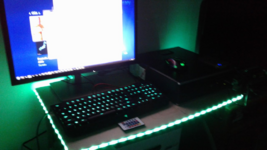
Almost everything in this setup has since changed except for the monitor, which I still use to this day.
AOC makes some really good monitors.
Furthermore, I also remember this was around the same time I started experimenting with liberating my collection of DVDs. I don't know if I ever figured out how to get them to show up in Windows Media Center, but it wouldn't surprise me if I did considering I got Bill Wurtz's History of Japan to do so and there's no reason the same couldn't be done for actual ripped movies. If I recall correctly, I also experimented with getting the YouTube on TV client to work with the setup, but it was really jank and didn't really work as well as I'd hoped. This setup did work, but it was incredibly jank and it still wasn't fully functional as I didn't have a TV tuner. I stopped using it for this purpose after reinstalling Windows onto an SSD.
I still used it in order to VHSify people's profile pictures back in the day due to limitations with how my setup worked at the time (I needed to cast them to my Xbox 360 and then daisy chain two VCRs together). You read that right - VHSifying people's profile pictures.
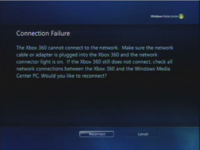
I stopped using it altogether once I updated my then-main system from Windows 7 to Windows 10 in September 2019.
Almost everything in this setup has since changed except for the monitor, which I still use to this day.
AOC makes some really good monitors.
Furthermore, I also remember this was around the same time I started experimenting with liberating my collection of DVDs. I don't know if I ever figured out how to get them to show up in Windows Media Center, but it wouldn't surprise me if I did considering I got Bill Wurtz's History of Japan to do so and there's no reason the same couldn't be done for actual ripped movies. If I recall correctly, I also experimented with getting the YouTube on TV client to work with the setup, but it was really jank and didn't really work as well as I'd hoped. This setup did work, but it was incredibly jank and it still wasn't fully functional as I didn't have a TV tuner. I stopped using it for this purpose after reinstalling Windows onto an SSD.
I still used it in order to VHSify people's profile pictures back in the day due to limitations with how my setup worked at the time (I needed to cast them to my Xbox 360 and then daisy chain two VCRs together). You read that right - VHSifying people's profile pictures.
Fast forward to the year 2025, and so much in my life has changed but my desire to have a media center PC was still burning as bright as ever. Now that I had a dedicated computer and a fairly reliable source of parts and income to facilitate my reckless spending, I decided to take this computer I got for basically free and use it as my media center PC. I decided to face up against one of the biggest obstacles preventing me from using Windows Media Center as was intended - the lack of a TV tuner card. While I initially expected to get it as a Christmas gift for 2025, I ultimately ended up just ordering one on Amazon for around $90 (including shipping and tax).
The TV tuner I ended up getting was also from Hauppauge - a WinTV DualHD USB TV tuner. It boasted compatibility with both modern applications like Plex and older applications like Windows Media Center, meaning it technically still worked on Windows 7.
Setting up the TV tuner with Windows Media Center
Unlike my experience with the capture card, setting up the TV tuner was not an easy process. WinTV and the drivers for the TV tuner did still work with Windows 7, but it definitely fought me every step of the way.I had to download the installer for WinTV and enter a product key for the latest version of WinTV just to get drivers going for it (which was fine, but still fairly annoying) and ignore some warnings about unsigned drivers (apparently a consequence of new code signing requirements) before things would get installed, but then I discovered that for whatever reason the card wouldn't get recognized by WinTV or Windows Media Center when plugged into certain ports. In fact, it would even bluescreen the whole system and would refuse to boot unless I physically unpluged the card.
However, I eventually got it working consistently by plugging the TV tuner card into the front USB port of the computer and using it that way, and after that things were... fine. Windows Media Center recognized the card immediately and started setting everything up and scanning for local channels using the inbuilt antenna. Everything in that field worked, but I then needed to do some extra work as Windows Media Center in a standalone state suffers from a minor case of software rot as the TV guide no longer works properly.
Retrofitting Windows Media Center
When Microsoft discontinued Windows 7 in 2020, they also officially discontinued services that Windows Media Center relies on to get listings for all the channels in your area which included details like information about each individual channel, what shows are currently on the air, what shows are coming up, and other useful details that make it possible to schedule and organize recordings. While it apparently still got updated until April 2020, nowadays it no longer works and you now have to either suck it up and deal with "No Preview Available" on all channels or use an external program to provide all the listings.I decided to use an external program called EPG123 which takes information provided by a nonprofit service called Schedules Direct, converts the data into something that Windows Media Center can read, and provides it to Windows Media Center. While I initially struggled to figure out how to use the program, I figured it out eventually and subscribed to listings for OTA TV in my ZIP code. It works as a drop-in replacement for the built-in service Windows Media Center offers, so now my TV guide actually works properly.
Plugging the computer into my TV
This may seem silly, but for a while the computer wasn't actually hooked up to my TV or used as a "media center" system. It simply acted like a recorder for me to record TV and watch later. It was hooked up to a relatively small 1080p monitor (later downgraded to an inferior 1600 x 1050 monitor) that was relegated to a corner of my room across from my bed. You can actually see this setup in one of the images above, and it was pretty awful. So, while I was cleaning my room and reorganizing some things, I decided to actually make it a proper media center PC and hook it up to my TV over HDMI.While this was a painless process thanks to the fact I had a DisplayPort to HDMI adapter lying around, this shift in location had its quirks. I would need to set my antenna up in a spot where it would still get a strong enough signal for most channels, which I managed to pull off using a very jank process called "placing the antenna on top of the 1600 x 1050 monitor and hoping it stays on", which actually worked. Another matter I had to worry about is how I'd control the computer. Given the distance from the computer to my bed, I'd need either a really long USB cable for the keyboard and mouse or I'd need to figure out a wireless solution. We'll get back to that in a later section.
This actually worked better than I expected. The picture isn't 1080p, but the picture looks a lot sharper in 1360x768 anyways, so I'm not too concerned.
Adding the official YouTube TV client
Since around 2010, YouTube has offered a special client for devices belonging in the living room like game consoles and smart TVs. This client is called Leanback and there's a good chance that if you casually watch YouTube on the big screen you have used this client before.In the past, you could actually use it on any desktop computer by simply going to https://www.youtube.com/tv, but at some point in late 2019 they stopped letting you do this and attempting to navigate to it now simply redirects you to the desktop YouTube. However, you can actually disable this redirect entirely by spoofing your browser's user agent to one belonging to either a smart TV or a game console. This tricks Leanback into running anyways and it treats your tab more or less like as if you're on such a device, minus the platform-specific controls.
Windows 7 elements (taskbar, winver) are usually hidden, but are shown here to show it can run on a desktop operating system just fine
To streamline this process, I set up a shortcut using Relaunch (a program which lets you set up shortcuts to any program you want and put them in the Extras part of Windows Media Center) to launch a Firefox instance with the user agent already set. I could have just left it at that and it would have been probably fine, but I am a perfectionist who wants user-facing simplicity above all else, so I actually set up everything in a separate, dedicated profile configured with the user agent and installed UBlock Origin and configured the shortcut to launch this profile specifically in Kiosk Mode, which makes it launch in fullscreen mode with some of the traditional shortcuts disabled. Despite the lack of native controls (which can be mitigated, see the next section), the rather seamless transition and inclusion of an ad-blocker makes this experience somewhat better than the official client on most smart devices, especially given how absolutely unbearable it can be with ads.
I eventually want to figure out how I can do this with other streaming services if possible, because that would be pretty awesome to pull off.
Hey... this thing has an IR sensor!
Something I hadn't mentioned up until this point was the fact that the TV tuner includes an infrared sensor and a special remote intended for controlling the prepackaged WinTV software. The sensor is located on the actual USB card itself. The remote it comes with admittedly feels a bit cheap and generic (I'd consider it on par with those remotes you get when you get a cheap LED strip), but given the price of the tuner in the first place, that's not too surprising. At the very least, it's serviceable. It'll get you from point A to point B, but don't ever think about going to point C.It's about as small as a credit card in person.
If you want to have a proper remote setup that works with Windows Media Center more natively and are willing to split with some cash, Hauppauge offers a much better remote kit for around $30 on their website which is more feature packed and offers a lot more features. For example, it comes with a dedicated IR blaster and receiver unlike what you get with the kit I got.
No Pkcells? 0 Stars.
- As I learned from my own testing, the built-in receiver does not recognize inputs from standard Windows Media Center compatible remotes. It only recognizes inputs from remotes specifically made by Hauppauge. For those with universal remotes, this can usually be worked around by using Hauppauge-specific remote codes. Jasco, the manufacturer of most universal remotes on the market right now, includes such codes in the "Streaming Media Player" device category on their website. If you use a CL5 model remote, the codes are either 1334 or 1624. This can do the job for most cases, but certain buttons on Hauppauge's remotes (like the number buttons) don't have working equivalents from what I've seen.
- To allow for Hauppauge remotes to work with Windows Media Center and other programs, WinTV also includes a special program which translates their remote codes into either Windows Media Center messages or actual keyboard inputs. Unfortunately, this program is very basic and has basically no customization capabilities. This is generally okay for most simple activities that involve navigating through programs like Windows Media Center, however the lack of "remapping" functionality and the limitations of certain programs means that it simply doesn't work with the YouTube Leanback setup I mentioned above.
Since EventGhost has a built-in plugin specifically for hooking into Hauppauge's IR sensor API and reading its signals, I figured I could use it to control how my remote inputs get picked up and handled. The main motivator was to be able to control my YouTube TV client with my universal remote so I don't have to constantly get my keyboard out. I thought I could simply implement the controls or at least emulate what they should be by making it either send keystrokes to the Firefox window. However, for some reason the plugin couldn't actually find the DLL file it needed to hook into Hauppauge's systems. As it turns out, the plugin's code is ancient and relies on registry keys that simply don't get written to anymore. I only found out about this after debugging the plugin myself with Wordpad (I didn't have Notepad++ installed yet) and patching it to use a hardcoded path to the DLL file instead instead of the silly business it was doing. It seems that I'm never free from the curse of having to debug other people's code, not even while trying to set up a media center. I have since created an issue on EventGhost's GitHub about this. After struggling to figure out why EventGhost wasn't picking up my patched version whatsoever and trying to figure out how to use the program, I started work on a series of macros to emulate the controls YouTube Leanback expects with a remote. I didn't want to implement too much because it was 12 in the morning and I wanted to get to bed at a somewhat reasonable time.
Fast forward to about 2 hours later, and I had reimplemented a good chunk of that Hauppauge's own IR program was doing but with EventGhost and added some extra features like a dedicated "screensaver button". Not only was YouTube now working with my universal remote, but so was Windows Media Center. I still have a lot to do, like controlling standard external programs with the remote, turning the display on again after a long period of inactivity, and implementing a bunch of buttons present on the credit card remote that aren't present on my universal remote.
Hey, at least it works for the most part!
Hey... it can burn CDs and DVDs, too!
Windows Media Center also boasted the ability to burn DVDs. Windows Vista and 7 offered a program called Windows DVD Maker which had a similar idea, but that was mostly intended for making slideshows of family pictures or making multiple copies of home videos to share with friends and family. Windows Media Center's DVD burning feature on the other hand allowed you to take whatever videos were in your digital media library like anything you recorded off TV or (as I mentioned before) home movies and burn them onto a blank DVD. You can include as many videos as you want, but WMC makes it clear that you will eventually start having to sacrifice video fidelity to fit it all on a single disc. Once it finishes burning, it also asks if you want to make another copy.This actually has a bunch of possible use cases beyond sharing family movies. You could burn family videos onto DVDs and share them with friends and family. You could back up your entire digital media library onto something more physical in the event something were to go horribly wrong with your system. You could share an episode of SpongeBob that had just aired the night before with some friends. You could even free up space on your system if it was running low on space (after all, common hard drives of the time were nowhere near the capacity they are now) by offload some old recordings onto a couple of blank DVDs you might have lying around. This feature may seem strange or silly at first, but it's important to note what the competition was at the time and what they let you do. Microsoft was trying to compete with consumer DVRs like Tivos, standalone DVD recorders, and VCRs all at the same time. Some Tivo models even had DVD recorders built into them which let you transfer recordings onto DVDs, and pretty much every model let you transfer your recordings onto VHS. Once you factor those in, having a feature like this in WMC makes a lot more sense.
My only complaint is that the burning process initially takes a bit. WMC has to first re-encode your recordings or videos into something that a DVD recorder can understand before it can start writing the data to the disk, and even then it seems to take a while to write the data too. It does eventually finish, though. DVDs burned with Windows Media Center have a menu resembling that of other consumer DVD recorders of the time (shown on the left), but styled with WMC branding (shown on the right), which is a nice touch.
Windows Media Center can also supposedly burn CDs as well, but it seems to be fairly finnicky on what you can and can't burn. I really don't fault Microsoft for this. This was around the same time that the absolute parasites of the music industry (particularly the RIAA) were acting far too big for their shoes and bullying technology companies into stifling innovation because they were convinced that MP3 files were like the boogeyman that was going to destroy them and eat them alive. Needless to say, I viciously and vehemently despise these people. However, the blame isn't entirely on them this time as it seems that codecs have a hand in this. I can't seem to get FLACs working without it complaining about licensing or something and 320 kbps MP3s just don't burn at all for some reason. Even WAVs seem to be a bit finnicky, so I have no idea what's going on.
Oh boy, liberated media
I mentioned before that my intrigue with Windows Media Center was very likely the catalyst behind my borderline obsession with liberated media. It should therefore be no surprise that one of my many experiments with this setup is to put my massive 3.4 TB backlog of almost entirely liberated movies and TV shows to good use. This came with a bunch of challenges and problems I needed to deal with along the way. This was surprisingly some of the least time consuming work since I already had a good idea of what I wanted to do and how I was going to do it.The first matter I had to address was fairly straightforward - where am I going to put everything? I could purchase a DAS, sacrifice a spare external hard drive, upgrade the computers internal storage with a 1 TB SSD, or use a NAS to host everything. Each had their own benefits and drawbacks, but I ultimately decided to just make a dedicated locked down user account on my NAS with its own folders for storing music, movies, TV shows, etc and then simply mount its home folder as a network drive with SMB on the desktop. This would be easy to scale up, would have good enough compatibility, and would be the least painful to set up and maintain. It was. After adding the network drive and including the relevant folders in WMC's libraries, adding media to the library was as simple as copying the files to their relevant folders from my main system onto the NAS and waiting for Windows to update its indexes.
The second matter was encoding and compatibility. Since my massive collection of liberated media takes up a lot of space, I want to minimize how much it actually uses by re-encoding films from my backup drive and compressing them where possible to reduce the footprint on my NAS. Music isn't a big deal as an album in FLAC format usually only takes up a few hundred MB at most, but movies and TV shows need some extra work. However, I need to be careful what formats I use for encoding as Windows of this age may not take too kindly to some of the more efficient but newer encoding formats. To maximize compatibility, I installed a few extra utilities and codec packs so that Windows Media Player (and by extension, Windows Media Center) can recognize some of the never formats and try to play them back. To get FLAC files to show up in the music libraries, I installed a plugin for Windows Media Player called WMP Tag Plus, which can be downloaded here. For playback, I installed the free K-Lite Codec Pack, which allows WMP and WMC to play back certain file formats like MKV and MP4. For the re-encoding part of things, I'm still experimenting but so far I've been using Handbrake set to use my GPU as the video encoder, crop the video to get rid of the black borders, and spit out an MKV file a fraction of the size of the original. Some movies are more cumbersome than others, so in those cases I have it set to reduce the "constant quality" setting by like a few points from 17. Anything lower tends to use up too much space and anything higher just kind of looks bad. I still have yet to figure out closed captioning as it for some reason just doesn't work for me unless I use SRT files from somewhere like opensubtitles.org. I'll have to investigate that more deeply.
Certified hood classic
The third matter, however, was a lot more of a headache - metadata. I'll be honest and say Windows Media Center sucks when it comes to managing metadata for music, movies, and TV shows. With music, it used to automatically pull metadata for music whenever you'd rip a CD with WMC, but as I mentioned before now it just results in unknown albums by an unknown artists with generic track names. This isn't a big deal because WMC just uses whatever metadata an audio file has etched into it and if no such metadata exists, external programs like Exact Audio Copy and MusicBrainz Picard (which both still work on Windows 7 to this day) can do the trick and arguably do a better job at it anyways.
However, with movies and TV shows it's a massive headache. Movies and TV shows that weren't recorded from TV using the program or aren't actively in the computer's DVD drive lack any form of metadata whatsoever. This is likely to avoid legal headaches that could come from automatically adding metadata to movies and TV shows in your library that weren't obviously legally obtained. As such, movies that don't have any metadata at all simply show up as the file/folder name the film is in and an automatically generated generic cover. It's still perfectly functional, but it looks really out of place amongst movies that you recorded from TV which do have metadata. If you want something that looks presentable and pretty, you need to put in the extra work to do it. The only problem is finding software to do it. I tried three pieces of software I found online and the results varied greatly.
- YAMMM (Yet Another Media Meta Manager) was the first as I had previously used it in 2018 to get metadata for the DVDs I had liberated. Finding a working download link in 2026 was next to impossible, so I had to resort to an old backup I took from around the same time in February 2018 which still had an installer in the Downloads folder. I have since put this copy on the Internet Archive. Not that it mattered anyways because the program was really clunky to get it to pick up on my shared folders and it at the end of the day it didn't even work. The software rot had become terminal and it simply didn't do anything.
- tinyMediaManager is a free and open source media management program which supposedly worked across various operating systems and media center programs. I tried it out, but it didn't even open. Windows 7 was apparently just too old for it.
- Media Center Master was the last program I tried and while it is a shareware program, it claimed to still work with Windows 7 and Windows Media Center and seemed to still be actively maintained. After configuring it to look in the right directories and generate the correct data for Windows Media Center, it immediately started populating the test folder I had some movies in with details like covers, titles, release dates, summaries, and more using information gathered from websites like IMDB. It just worked, which was a breath of fresh air after spending like an hour trying to get old programs working again.
I have a lot more than this, but it's a time-consuming process to encode each individual film and then get metadata for them.
Using Windows Media Center
I suppose now would be a great opportunity to detail my experience using it as my dedicated media center box and how I feel about it now that I'm using it to its full potential as I had dreamed of doing all those years ago. To put it simply, I love this thing. It's clear that Microsoft had been taking notes when they were developing Windows Media Center for later versions of Windows, because in addition to overhauling the user interface to make it more beautiful and ergonomic, they also got rid of a lot of the fundamental jank plaguing its previous incarnations by simply including it as a feature of the standard Home Premium and better tiers of Windows Vista and Windows 7 instead of making it some weird separate edition.I can't stress enough how important this decision was. It made the prospect of setting up a media center a lot more accessible to the average consumer as they didn't have to go out and buy a PC specially made with the explicit purpose of being a media center. Anyone could just get a decent enough computer running Windows Vista or 7, buy some additional hardware from companies like Hauppauge and plug them into their existing setup, and within minutes they have a working media center PC that can play music, watch movies, and record live TV from either satellite/cable or over the air TV. You could even buy a Bluetooth keyboard which had a "mouse" on it that was specifically designed to be for media centers without having to get one with a special computer. Maintaining it was also far easier as you didn't need special drivers, updates, or hardware catered for your particular version of Windows. It literally just works.
Sure, there were still some quirks in the system like the unreliable extender functionality which I still can't get working for some reason, but aside from that and some other minor things either related to copy protection shenanigans, Windows Media Center has been relatively painless and a lot less confusing than even some more modern equivalents.
I'm honestly so happy I was able to bring this lifelong dream I've had of setting up a dedicated media center box and using it like how it was intended so many years ago, even if it took some extra legwork to get there. I look forward to using it more often whenever I want to watch a movie or something.
Conclusion
For how small it actually is, this computer is still surprisingly powerful and capable. It plays back videos and movies extremely smoothly and it makes perfect recordings. Computers like this are why I think that a lot of older systems that don't support 11 officially still have a lot of life in them. I have been using this computer for the past few months as my media center PC to watch movies, record and watch TV, and play ambient audio while I'm trying to sleep, and I plan to keep upgrading and expanding it over time. The next upgrade might be a proper SSD to improve boot and load times, but I'm not sure. Let me know if you have any ideas for how I could improve it.Thanks for reading.


