

- 420
- IGN
- videogamesm12
I like Chromebooks. They're incredibly portable and have a great battery life. When I was in school the district gave me a small folding laptop from Lenovo which could be turned into a tablet. I loved that thing and I wish I could have taken it with me when I got out of high school. There's just one slight, teensy problem though: the company behind this ecosystem is Google of all people. Wouldn't it be great to have the perks of a Chromebook and not have the stink of Google?
Some people at this point will suggest getting an Ultrabook or some other "modern" laptop. Okay, sure, I could pay $300 for a piece of crap Windows laptop from HP with all the bells and whistles, but $300 could also net you an actually decent used laptop from a few years ago with much better hardware specifications if you know where to look. What if you're on a budget or you want to repurpose an older system instead of buying another ewaste system? What if you just want a simple laptop that you can experiment with? $300 is kind of hard to justify paying for in this economy when you have better options.
Chromebooks, on the other hand, are extremely cheap to get ahold of considering the hardware. It won't game, but if you just want something to browse the internet with or write documents on, these things are extremely cromulent. Schools love them because they're cheap to acquire, cheap to maintain, and cheap to repair. Plus, they can be heavily locked down using solutions provided by Google and other companies. To get an idea of how cheap they are, you can get a liberatable Chromebook for just $60 from eBay and it'll work just fine. Even systems that you can't yet liberate are going for roughly the same prices refurbished on Amazon. If you can find a way to liberate a Chromebook, suddenly the idea of a cheap, $60 computer that you can use for basic day-to-day tasks suddenly becomes a lot more of an appealing find.
Today, I'm going to take you through the process I went through to liberate a Chromebook and convert it into a proper Linux laptop. This will involve making sure it can be liberated, enabling developer mode, screwing with the firmware, installing an operating system of your choice, and then doing some extra legwork afterwards. The Chromebook I will be using as a subject for this guide is a Lenovo Chromebook 300E 2nd Gen. This is actually the model I had when I was in high school, and I want to use it for writing posts like this while I'm traveling.
Since Chromebook models can be virtually identical on the outside but function very differently under the hood, you can't just search for the model and hope for the best. No, that's not going to work here. You need to get our Chromebook's Board Name/HWID. It's a codename that uniquely identifies the motherboard you're using under the hood. To do this, on the Chromebook, sign into it (either as a guest account or a regular user, it doesn't matter) and go to
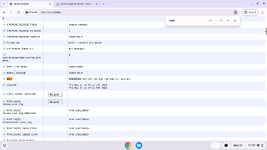
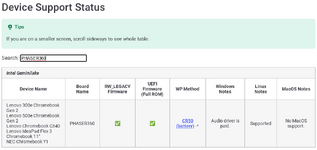
Once you know your Chromebook's HWID, go to the aforementioned list I hotlinked and use its search feature to find the exact model of Chromebook and motherboard variant using the Board Name. If no devices come up when you search for it and you're sure it's typed correctly, then I'm afraid your Chromebook can't yet be liberated. If a device does come up and it matches your model, your system can be liberated. Now, it's just a matter of determining the path to take.
There are a few perks for this approach:
There are quite a few perks for this approach:
After backing up your data onto something like a USB flash drive or SD card, turn your Chromebook off. Enter Recovery Mode by either pressing and holding Esc + Refresh + Power (for Chromebooks) or pressing a recovery mode button (for desktop ChromeOS boxes). It will show you a message either claiming that ChromeOS is "missing or damaged" or instructing you to insert a recovery stick/SD card. Don't worry - this is normal. At this screen, press Ctrl + D.
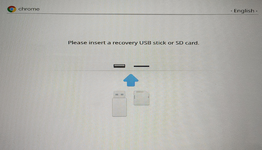
It will prompt you to confirm your choice by pressing ENTER, making it very clear along the way that anything stored locally will be nuked. Since you made a backup of any local data you cared about already (...you did do that, right?), you can continue forward by pressing ENTER.
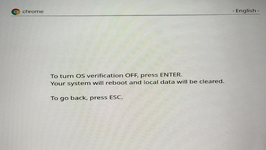
Your Chromebook will restart and will show you a message declaring that "OS Verification" is off. To continue, press Ctrl + D. Your Chromebook will now wipe itself and restore itself back to factory defaults.
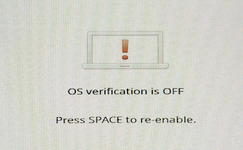
From there, you will be right back at the ChromeOS out of box experience. You don't actually need to log in with a Google account at this point - you can just log in as a guest for our purposes when you need to reach a desktop.
Once you're at a desktop environment, you need to get into a terminal environment. If your Chromebook reached its end of life before mid-2023 or hasn't been updated since before then, chances are you'll need to get into a terminal environment by pressing Ctrl + Alt + T and typing
Once you're at the terminal, run the following command to download and run the firmware utility script:
Assuming everything works, you will then be presented with a bunch of details about your hardware and given a few options.
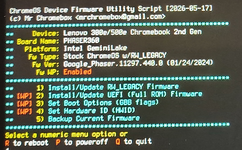
The option you want to go with is
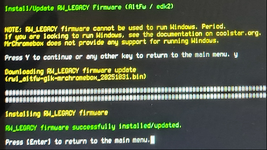
Your Chromebook is now partially liberated, as it can now boot other operating systems. To boot into other operating systems, press Ctrl + L at the "OS verification is OFF" screen instead of Ctrl + D. Booting will at this point depend on the age of your system. I have no exact timelines for these, but you can tell which is which pretty easily.
Like most modern laptops, disconnecting the battery involves disassembling the system. As such, it's recommended to have a good pair of screwdrivers and a thin, flat object that you can use as a prying tool. If you have the model of Chromebook I have, removing the bottom cover is pretty simple. On the bottom cover there are 9 screws that you need to remove. Once done, use the flat object to create a wedge between the seams where the bottom plate meets the rest of the case, then once you've managed to do that, just remove the bottom cover. This will show the battery and the laughably small motherboard.
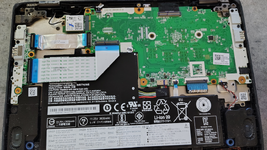
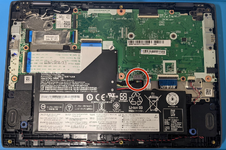
There's a bunch of connectors, but you want to remove the one connecting the battery to the motherboard. Shown below is an image highlighting where the battery connector was for my Chromebook's particular model. Disconnecting it is as easy as simply wiggling the connector from side to side until it eventually comes out. Just be careful, and don't be forceful.
After disconnecting the battery, put the back cover on loosely and plug the Chromebook into your wall outlet using its AC adapter. Boot into ChromeOS and proceed to reach a desktop environment. This can be done without a Google Account by just logging in as a Guest when the option becomes available. Make sure to have an active internet connection.
Once you're at a desktop environment, you need to get into a terminal environment. If your Chromebook reached its end of life before mid-2023 or hasn't been updated since before then, chances are you'll need to get into a terminal environment by pressing Ctrl + Alt + T and typing
Once you're at the terminal, run the following command to download and run the firmware utility script:
Assuming everything works, you will then be presented with a bunch of details about your hardware (including whether write protection is disabled) and given a few options. Assuming that "FW WP" says "Disabled", you are now ready to begin messing with the firmware.
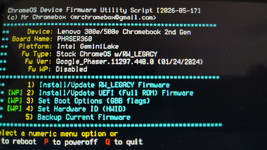
Just to be safe, you're going to first make a backup of the existing firmware. This is so that in case something goes horribly wrong, you have a known good firmware image to restore from. Get a spare USB flash drive and type
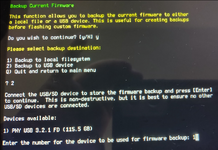
Now that you have a backup, it's finally time to install the custom firmware. Type
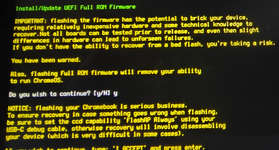
Once you get past those, it will ask you if you want to make a backup of your firmware. You already did this, so just decline it by typing N and pressing ENTER. The script will then proceed to download and install the replacement firmware onto your system.
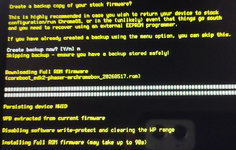
Once it's finished, you will be sent back to the main menu. From here, you can just restart. The first startup after doing this will take some time! Let it take as long it needs to boot. Subsequent boots will take *far* less time. Once you get past the boot screen, it will tell you that it couldn't find an operating system to boot from on the built-in system, which is to be expected. Power off and unplug your Chromebook, remove the back cover again, re-connect the battery, and reassemble the system.
So, our Chromebook is technically fully liberated now as it doesn't run any proprietary Google software anymore. However, since it don't have anything to boot into, you're going to need to install an operating system. Let's do that.
If you choose the Linux path, downloading these is pretty easy and I've hotlinked download links in the list above. I ended up choosing Arch Linux, which is slightly more involved but is easy to get going by just booting into the installation media, connecting to a Wi-Fi network with
Once you have an ISO, you will need to etch it onto a flash drive.
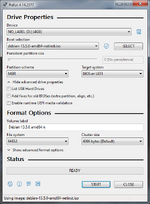
On Windows based computers, this can be done by using a program called Rufus, which will write ISO files to any removable storage devices you choose. Download Rufus from either its GitHub or its website and run it. A window will come up asking you to choose a device and an ISO file. If you only have one removable device plugged in, it will default to that. Click the SELECT button and choose the ISO file you downloaded for your particular operating system in the window that pops up. If you're trying to etch Windows onto the installation media, make sure that the Partition Scheme is set to GPT. Otherwise, leaving it as MBR is fine as long as Target System says "BIOS or UEFI". Once you've verified that everything is correct, click START to begin writing it onto the flash drive.
On Linux-based computers, you can do this using a built-in utility called
This command instructs Linux to write the contents of the ISO file directly onto your flash drive while giving you an idea of how much data has been written so far. Once done, it will let you know. Make sure to pick the right drive, or you might accidentally overwrite something important, like your computer's OS partition. Shown below is the command line output of me using the
If you're a turbo nerd like me, it might be even better to just have a dedicated USB flash drive that lets you choose an ISO file to mount and boot into. In a future post, I will write about the process you need to go through to accomplish this. When this happens, I'll update this post with a link to that one in this section.
Once you've finished writing the installation media onto a USB flash drive, booting into it is as easy as plugging it into the Chromebook, accessing the relevant boot device menu, and then choosing the flash drive. The installation process will be no different from what it would be like normally.
Note: If you are using Arch Linux, make sure to install the
With Git installed, clone the repository hosting the audio drivers and run it by using the following commands:
It will ask you to enter your password. This is fine, it just needs sudo privileges to make changes to the audio manager. From here, it will try to detect your platform, install configuration files, detect your hardware, and resolve any stability issues that may come up. Assuming that nothing goes wrong, it should finish within seconds and ask you to reboot your system to apply the changes.
If it complains about something called AVS in relation to a chip called
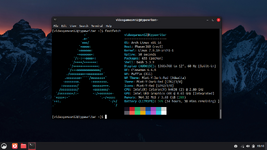
That's pretty much it. Linux is surprisingly well-supported out of the box if you use a relatively up to date kernel. Even the navigation buttons at the top seem to have been remapped to their ChromeOS equivalents, which is a nice touch. I'm sure you could make some additional tweaks, but... yeah.
Thanks for reading.
Some people at this point will suggest getting an Ultrabook or some other "modern" laptop. Okay, sure, I could pay $300 for a piece of crap Windows laptop from HP with all the bells and whistles, but $300 could also net you an actually decent used laptop from a few years ago with much better hardware specifications if you know where to look. What if you're on a budget or you want to repurpose an older system instead of buying another ewaste system? What if you just want a simple laptop that you can experiment with? $300 is kind of hard to justify paying for in this economy when you have better options.
Chromebooks, on the other hand, are extremely cheap to get ahold of considering the hardware. It won't game, but if you just want something to browse the internet with or write documents on, these things are extremely cromulent. Schools love them because they're cheap to acquire, cheap to maintain, and cheap to repair. Plus, they can be heavily locked down using solutions provided by Google and other companies. To get an idea of how cheap they are, you can get a liberatable Chromebook for just $60 from eBay and it'll work just fine. Even systems that you can't yet liberate are going for roughly the same prices refurbished on Amazon. If you can find a way to liberate a Chromebook, suddenly the idea of a cheap, $60 computer that you can use for basic day-to-day tasks suddenly becomes a lot more of an appealing find.
Today, I'm going to take you through the process I went through to liberate a Chromebook and convert it into a proper Linux laptop. This will involve making sure it can be liberated, enabling developer mode, screwing with the firmware, installing an operating system of your choice, and then doing some extra legwork afterwards. The Chromebook I will be using as a subject for this guide is a Lenovo Chromebook 300E 2nd Gen. This is actually the model I had when I was in high school, and I want to use it for writing posts like this while I'm traveling.
What are the benefits of a liberated Chromebook?
Good question that I'm totally sure you asked. There's a few that come to mind immediately.- Liberated Chromebooks are able to run modern operating systems like most distributions of Linux. Depending on how much internal storage is present, it might even have the legroom to run a more spatially demanding operating system like Windows 10 and newer.
- Chromebooks that are no longer supported by Google or are nearing that status can have their lifespan greatly extended by liberating them and installing a replacement operating system. For example, I installed a desktop version of Linux onto an end of life Chromebook and used it as an "emergency workstation" for use in case my school Chromebook's battery was dead or if I was needed for anything on TotalFreedom. In another example, I used a Chromebook as a basic Alpine server which acted as an ArchiveTeam Warrior to help scrape Imgur. Some people have even installed ChromeOS Flex onto their systems to get a more up to date version of ChromeOS on their systems.
- As I mentioned before, Chromebooks are cheap to get and free to liberate. If you just need a cheap computer to do basic tasks like browsing the internet or editing word documents, these things are great for when you're on the budget but still want something that isn't actively selling your data to advertisers.
Are there any drawbacks?
Unfortunately, yes, but these drawbacks are usually the result of the hardware put into the system and thus applies regardless of whether the system is liberated or not. Still, it's worth accounting for.- Lower-end Chromebooks will have weaker hardware across the board. You might get an Intel Celeron or only have 16 - 32 GB of internal storage to work with. While there's not much you can do about the processor problem aside from using aggressively optimized software, the storage capacity situation can be mitigated by storing personal files and stuff like that onto an SD card you stick into your system. Amazon offers a 128 GB SanDisk MicroSD card for about $35. It's probably a good idea to do this anyways just in case something were to go wrong with Linux.
- Because Chromebooks were designed to run ChromeOS and not Windows or Linux, support for bits of hardware like audio or trackpads can sometimes be hit or miss. From personal experience I could never get Windows to recognize my trackpads and to get working audio you have to pay for drivers. On the Linux side of things it's a lot better as these would always work, but audio is still a problem. Fortunately, there's a way to get that working for free, and I've outlined it in a future section.
A few things to account for
Before we begin, I have a few disclaimers to set forth. These are important and you should read them.- Everything I'm about to show you will void your warranty. I feel like this should be obvious given the extent you have to go to liberate these, but not everyone is going to understand this unless I drill it into their heads.
- You should only do this with hardware you actually own. If you are given a Chromebook by your school or workplace, chances are they are merely lending them to you. Liberating these devices will definitely get you in hot water with them. This blog post is only for people who have a personal Chromebook that they would like to liberate.
- The process of liberating your Chromebook carries with it the extremely low risk of accidentally bricking your system. Since you are making changes to the Chromebook's actual firmware, there's a chance that things may go wrong despite the safety nets that have been put into place. You should be backing up your data and firmware before even beginning with any of the steps outlined here.
- This post is a simplification of a series of guides posted by the MrChromebox and Chrultrabook communities. It would be wise to make sure that you double-check each step and fact outlined in this blog with what they say in their guides, as there's a chance that these steps could change in the future.
Making sure your Chromebook is compatible
The first thing you should do first and foremost is check to make sure that your Chromebook can be liberated in the first place. Not all Chromebooks are created equal as some don't even use the same CPU architecture despite looking identical. Fortunately, the Chromebook liberation community has set up a nice list of which makes and models can be liberated, which routes you can take during the liberation process, what needs to be done to disable write protection, and what issues you should expect. We will be using this list to determine if our Chromebook is one of these.Since Chromebook models can be virtually identical on the outside but function very differently under the hood, you can't just search for the model and hope for the best. No, that's not going to work here. You need to get our Chromebook's Board Name/HWID. It's a codename that uniquely identifies the motherboard you're using under the hood. To do this, on the Chromebook, sign into it (either as a guest account or a regular user, it doesn't matter) and go to
chrome://system. This will show a page detailing your system's hardware. Most of this stuff isn't really important for what we want to do, so use your browser's search function (typically triggerable by pressing Ctrl+F) to search for "HWID". The string adjacent to it should be exactly what it says on the tin. Most of the string will be irrelevant aside from the word. In my case, the Chromebook's codename was PHASER360, as shown below.Once you know your Chromebook's HWID, go to the aforementioned list I hotlinked and use its search feature to find the exact model of Chromebook and motherboard variant using the Board Name. If no devices come up when you search for it and you're sure it's typed correctly, then I'm afraid your Chromebook can't yet be liberated. If a device does come up and it matches your model, your system can be liberated. Now, it's just a matter of determining the path to take.
Determining which liberation path to take
There are two paths you may be able to take to liberate your Chromebook: RW_LEGACY Firmware and UEFI Firmware. I'll explain both and the perks and drawbacks that each of them have in their own dedicated section. We'll go over how to actually apply these in a later section, so for now we're still in the planning stage of things.RW_LEGACY
RW_LEGACY (also known as AltFw) modifies the existing firmware in your Chromebook to allow you to boot into other operating systems without affecting your ability to boot into ChromeOS. It effectively leverages the existing firmware to boot into other operating systems.There are a few perks for this approach:
- This doesn't require you to poke around inside your system as the changes it makes are done in a spot that isn't write protected.
- This preserves the existing ChromeOS firmware and only makes modifications to it, so can still boot the native installation of ChromeOS just fine.
- This carries zero risk of actually bricking your system as it leaves the firmware relatively untouched.
- This is great for testing the waters before you actually make a commitment to fully liberate your system.
- This option only works if the device you are liberating is still actively supported by Google. Otherwise, your only option is to use the UEFI Firmware.
- Your choice of operating systems is far more limited when you liberate your Chromebook this way as you can only boot into Linux based distributions. Windows just doesn't work.
- Depending on your hardware revision, you may experience some limitations/bugs present in the stock firmware.
- Your hardware (e.g. touchscreens) may not be fully detected when Linux is installed with this approach.
- Every time you start your system up, you have to press Ctrl + L at the developer mode screen to boot into a non-ChromeOS operating system, which can become annoying rather quickly.
- Any changes you make to the boot process like the boot order simply won't apply due to the lack of NVRAM support.
UEFI Firmware
UEFI Full ROM Firmware (or as I'm going to call it, UEFI Firmware, to be sane) replaces the firmware in your Chromebook completely with a custom implementation that grants greater access to your hardware. This effectively turns it into a regular, fully functional computer.There are quite a few perks for this approach:
- This always works regardless of the age of your device, so even if Google doesn't support your device anymore you can still do this.
- Hardware detection actually works correctly, so your touchscreen will actually work.
- Operating systems like Windows and (for some devices) Mac OS actually work correctly, meaning you have a wider choice in what operating system to use.
- Changes you make to the boot process like the boot order will actually stick as NVRAM support is implemented.
- You don't need to press a keybind when you start your system up, it'll just jump straight into the operating system after giving you time to optionally get into the boot menu.
- The changes made with this approach are in areas that are write protected. You will need to first disable this write protection, which is accomplished in various ways depending on the model, most of which will require you to physically disassemble your system.
- Since this makes changes to critical components in the boot process, there is a very low risk of bricking your system if things go wrong.
- This approach will prevent you from booting back into the stock version of ChromeOS. If you are looking to use ChromeOS after going through with this method, you will need to use ChromeOS Flex or reinstall the original stock firmware using the tools outlined in this post.
Enabling Developer Mode
Since ChromeOS in its stock configuration is locked down for security reasons, the utilities you need to run require you to put your Chromebook into Developer Mode, which gives you more control over the operating system and hardware. Enabling Developer Mode will wipe your system for security reasons, so if you have anything valuable stored locally and it isn't on external storage like an SD card, BACK THEM UP NOW.After backing up your data onto something like a USB flash drive or SD card, turn your Chromebook off. Enter Recovery Mode by either pressing and holding Esc + Refresh + Power (for Chromebooks) or pressing a recovery mode button (for desktop ChromeOS boxes). It will show you a message either claiming that ChromeOS is "missing or damaged" or instructing you to insert a recovery stick/SD card. Don't worry - this is normal. At this screen, press Ctrl + D.
It will prompt you to confirm your choice by pressing ENTER, making it very clear along the way that anything stored locally will be nuked. Since you made a backup of any local data you cared about already (...you did do that, right?), you can continue forward by pressing ENTER.
Your Chromebook will restart and will show you a message declaring that "OS Verification" is off. To continue, press Ctrl + D. Your Chromebook will now wipe itself and restore itself back to factory defaults.
From there, you will be right back at the ChromeOS out of box experience. You don't actually need to log in with a Google account at this point - you can just log in as a guest for our purposes when you need to reach a desktop.
Installing the firmware
With Developer Mode now enabled, you now have the ability to run the scripts required to liberate a Chromebook. Now, the next steps will depend entirely on the path you chose to take a few steps ago. I have separated each series of steps into their own section. These steps are what I had to take for my particular model, but this may not apply for you.RW_LEGACY
The first step is to make your way into a desktop environment. This can be done without even using a Google account by logging in as a Guest when the option becomes available. Just make sure to have an active internet connection.Once you're at a desktop environment, you need to get into a terminal environment. If your Chromebook reached its end of life before mid-2023 or hasn't been updated since before then, chances are you'll need to get into a terminal environment by pressing Ctrl + Alt + T and typing
shell. If your Chromebook is still actively supported and has been updated within the last 3 years, you will instead need to jump into a terminal environment by pressing Ctrl + Alt + Forward and logging in as chronos, which by default has no password.
Code:
Developer Console

To return to the browser, press:

    [ Ctrl ] and [ Alt ] and [ <- ]  (F1)

To use this console, developer mode must be enabled.
Doing so will destroy any saved data on the system.

In developer mode, it is possible to
- login and sudo as user 'chronos'
- require a password for sudo and login(*)
- disable power management behavior (screen dimming):
  sudo initctl stop powerd
- install your own operating system image!

* To set a password for 'cronos', run the following as root:

chromeos-setdevpasswd

If you are having trouble booting a self-signed kernel, you may need to
enable USB booting.  To do so, run the following as root:

enable_dev_usb_boot

Have fun and send patches!

localhost login:
Once you're at the terminal, run the following command to download and run the firmware utility script:
Bash:
cd; curl -LOf https://mrchromebox.tech/firmware-util.sh && sudo bash firmware-util.shAssuming everything works, you will then be presented with a bunch of details about your hardware and given a few options.
The option you want to go with is
Install/Update RW_Legacy Firmware, which as of the writing of this post is option #1. Type the number and press ENTER. You will then be told that RW_LEGACY can't be used to run or install Windows. Since you already know this and are fine with proceeding regardless, just press ENTER again. The script will then proceed to download and install the RW_LEGACY firmware onto your system. Once it's finished, you will be sent back to the main menu. From here, you can just restart your system.Your Chromebook is now partially liberated, as it can now boot other operating systems. To boot into other operating systems, press Ctrl + L at the "OS verification is OFF" screen instead of Ctrl + D. Booting will at this point depend on the age of your system. I have no exact timelines for these, but you can tell which is which pretty easily.
- Older Chromebooks use something called SeaBIOS to boot into other operating systems using the old legacy BIOS boot system. It will simply show text saying "SeaBIOS" and give you the option to access a boot menu by pressing Esc. Very traditional, but it works pretty well. It's able to get into the Windows 7 installer just fine, but anything after that just doesn't work so don't even bother trying.
- Newer Chromebooks use something called EDK2 to boot into other operating systems using the modern UEFI boot system. It still carries the drawbacks I mentioned before, so don't consider EDK2 to be a clean alternative to the UEFI replacement method. It will show a graphic on your screen that looks like a rabbit and gives you the option to access a basic settings menu by pressing Esc. Your Chromebook may prompt you beforehand to pick a payload based on a number or whatever, and usually the numbers
1or0will work.
UEFI Firmware
The first step is to disable the write protection that protects critical system firmware from being tampered with. This is usually enforced by either a specific screw, switch, jumper, or electrical connection. Chromebook models released since around late 2021 require you to use a special debugging dongle to disable such protection, but anything released before that can usually have their write protection disabled without any special tools by just poking around inside your system. You can check what you need to do by referring back to the device list I linked above and looking at the "WP Method" column. In my case, the write protection is tied to the battery terminals, so I can disable the write protection by temporarily disconnecting the battery.Like most modern laptops, disconnecting the battery involves disassembling the system. As such, it's recommended to have a good pair of screwdrivers and a thin, flat object that you can use as a prying tool. If you have the model of Chromebook I have, removing the bottom cover is pretty simple. On the bottom cover there are 9 screws that you need to remove. Once done, use the flat object to create a wedge between the seams where the bottom plate meets the rest of the case, then once you've managed to do that, just remove the bottom cover. This will show the battery and the laughably small motherboard.
There's a bunch of connectors, but you want to remove the one connecting the battery to the motherboard. Shown below is an image highlighting where the battery connector was for my Chromebook's particular model. Disconnecting it is as easy as simply wiggling the connector from side to side until it eventually comes out. Just be careful, and don't be forceful.
After disconnecting the battery, put the back cover on loosely and plug the Chromebook into your wall outlet using its AC adapter. Boot into ChromeOS and proceed to reach a desktop environment. This can be done without a Google Account by just logging in as a Guest when the option becomes available. Make sure to have an active internet connection.
Once you're at a desktop environment, you need to get into a terminal environment. If your Chromebook reached its end of life before mid-2023 or hasn't been updated since before then, chances are you'll need to get into a terminal environment by pressing Ctrl + Alt + T and typing
shell. If your Chromebook is still actively supported and has been updated within the last 3 years, you will instead need to jump into a terminal environment by pressing Ctrl + Alt + Forward and logging in as chronos, which by default has no password.
Code:
Developer Console

To return to the browser, press:

    [ Ctrl ] and [ Alt ] and [ <- ]  (F1)

To use this console, developer mode must be enabled.
Doing so will destroy any saved data on the system.

In developer mode, it is possible to
- login and sudo as user 'chronos'
- require a password for sudo and login(*)
- disable power management behavior (screen dimming):
  sudo initctl stop powerd
- install your own operating system image!

* To set a password for 'cronos', run the following as root:

chromeos-setdevpasswd

If you are having trouble booting a self-signed kernel, you may need to
enable USB booting.  To do so, run the following as root:

enable_dev_usb_boot

Have fun and send patches!

localhost login:
Once you're at the terminal, run the following command to download and run the firmware utility script:
Bash:
cd; curl -LOf https://mrchromebox.tech/firmware-util.sh && sudo bash firmware-util.shAssuming everything works, you will then be presented with a bunch of details about your hardware (including whether write protection is disabled) and given a few options. Assuming that "FW WP" says "Disabled", you are now ready to begin messing with the firmware.
Just to be safe, you're going to first make a backup of the existing firmware. This is so that in case something goes horribly wrong, you have a known good firmware image to restore from. Get a spare USB flash drive and type
5 and press ENTER after plugging it in. When it asks you to choose a destination, choose "Backup to USB device" and then choose the flash drive you plugged in. This will not overwrite any data on your flash drive, it will simply write a copy of your firmware to a file on it. This should only take a few seconds, and once done it'll send you back to the main menu.Now that you have a backup, it's finally time to install the custom firmware. Type
2 and press ENTER. It will step you through a series of warnings about the low risk of bricking your device and some important information about brick recovery.Once you get past those, it will ask you if you want to make a backup of your firmware. You already did this, so just decline it by typing N and pressing ENTER. The script will then proceed to download and install the replacement firmware onto your system.
Once it's finished, you will be sent back to the main menu. From here, you can just restart. The first startup after doing this will take some time! Let it take as long it needs to boot. Subsequent boots will take *far* less time. Once you get past the boot screen, it will tell you that it couldn't find an operating system to boot from on the built-in system, which is to be expected. Power off and unplug your Chromebook, remove the back cover again, re-connect the battery, and reassemble the system.
So, our Chromebook is technically fully liberated now as it doesn't run any proprietary Google software anymore. However, since it don't have anything to boot into, you're going to need to install an operating system. Let's do that.
Preparing an alternative operating system
You now need to choose an operating system to take ChromeOS's place. As mentioned before, your options depend on the path you took. If you chose to keep the existing firmware but just modify it to run other operating systems, you can really only run Linux. However, if you opted to instead replace the UEFI firmware entirely, you can install operating systems other than Linux like Windows and (depending on the hardware) possibly Mac OS. However, there are some limitations to keep in mind, especially when working with systems with such a limited storage and memory capacity.Linux
Liberated Chromebooks make excellent Linux machines. I used a few as "emergency workstations" that I could deploy at any moment's notice if I needed to do so in public. Even partially liberated Chromebooks are more than capable of doing anything you would need to do with Linux. However, Linux comes in different flavors for different use cases and preferences, which is what makes it so flexible. When deciding on a particular flavor of Linux, it's best to determine what you're going to be using your Chromebook for.- Are you going to be using it as a server? If so, Alpine Linux is a great choice, especially considering how lightweight it is. If you want a server environment that is more familiar, then perhaps Debian's server profile or Ubuntu Server will do you some good.
- Do you just want a nice, safe desktop distribution that doesn't stray away from the fundamentals too much? Fedora Workstation and Ubuntu are well-supported in this sector and won't give you many issues. However, these distributions may carry performance or spacial penalties which you may not be able to afford depending on the hardware you have.
- Do you want to cut the fat where possible to save space and only install what you absolutely need, even if it means getting your hands a little dirty from time to time? Arch Linux is an extremely flexible distribution with an easy to understand package management system that lets you choose more precisely what you want and what you don't want installed.
- Do you want to just have an up to date version of ChromeOS on a potentially EOL device? ChromeOS Flex has you covered.
If you choose the Linux path, downloading these is pretty easy and I've hotlinked download links in the list above. I ended up choosing Arch Linux, which is slightly more involved but is easy to get going by just booting into the installation media, connecting to a Wi-Fi network with
iwctl, and then using the very helpful archinstall utility to handle the task of installing everything. This post is not a guide on how to install Arch Linux, but eventually it might be wise for me to write one about that eventually.Windows
Fully liberated Chromebooks can run modern versions of Windows, but there are a few large caveats to account for, especially when you have some weaker hardware.- Windows 10 is the oldest operating system that will comfortably run on these systems. This is due to a combination of lackluster driver and boot manager support that is prevalent in versions of Windows prior to 10. Windows 7 will refuse to boot due to issues with UEFI compatibility and attempting to bypass that by using something like UEFISeven will just hang or complain about missing storage drivers as 7 simply doesn't support eMMC storage at all. Windows 8 *can* run and install on these systems as it introduced proper support for UEFI and eMMC storage, but you'll be lucky to find important drivers like graphics drivers which will work on anything below Windows 10.
- Modern versions of Windows like to take up a lot of space regardless of the edition you use. Even a base installation of Windows 10 version 1507 (before things got really out of hand) took up almost 14 GB of total storage capacity. I mean, you could get away with running Windows 11 on just 32 GB of internal storage, but it wouldn't be a fun experience. Also, even LTSC versions of Windows can still take up a lot of space and memory which is something that simply can't be helped.
- Hardware support on Windows can be a bit of a hot mess. On most Chromebooks, audio drivers for Windows are custom-made and paywalled. Custom-made drivers for trackpads and touchscreens are available for download for free as well, however you have to actively seek these out as they aren't included in any driver packs like those offered by Snappy Driver Installer. I hope you know how to navigate Windows with just a keyboard or have an external USB mouse, because that'll be what you are stuck with at first.
Writing the ISO to a flash drive
Note: The following step will wipe the contents of whatever is on the flash drive you end up using. You should ideally be using a different flash drive from anything else here (especially anything holding backups) for this step.Once you have an ISO, you will need to etch it onto a flash drive.
On Windows based computers, this can be done by using a program called Rufus, which will write ISO files to any removable storage devices you choose. Download Rufus from either its GitHub or its website and run it. A window will come up asking you to choose a device and an ISO file. If you only have one removable device plugged in, it will default to that. Click the SELECT button and choose the ISO file you downloaded for your particular operating system in the window that pops up. If you're trying to etch Windows onto the installation media, make sure that the Partition Scheme is set to GPT. Otherwise, leaving it as MBR is fine as long as Target System says "BIOS or UEFI". Once you've verified that everything is correct, click START to begin writing it onto the flash drive.
On Linux-based computers, you can do this using a built-in utility called
dd. First, use the command lsblk to find your flash drive. Once you know what your flash drive's device name is, use the following command to write the ISO file onto said flash drive:
Bash:
sudo dd if=/path/to/iso.iso of=/dev/device_name_goes_here status=progressThis command instructs Linux to write the contents of the ISO file directly onto your flash drive while giving you an idea of how much data has been written so far. Once done, it will let you know. Make sure to pick the right drive, or you might accidentally overwrite something important, like your computer's OS partition. Shown below is the command line output of me using the
dd command with Debian's network installer ISO for demonstration purposes. In my case, the flash drive was called sda.
Code:
[videogamesm12@typerwiter Downloads]$ sudo dd if=/home/videogamesm12/Downloads/debian-13.5.0-amd64-netinst.iso of=/dev/sda status=progress
786133504 bytes (786 MB, 750 MiB) copied, 222 s, 3.5 MB/s
1546240+0 records in
1546240+0 records out
791674880 bytes (792 MB, 755 MiB) copied, 222.927 s, 3.6 MB/s
If you're a turbo nerd like me, it might be even better to just have a dedicated USB flash drive that lets you choose an ISO file to mount and boot into. In a future post, I will write about the process you need to go through to accomplish this. When this happens, I'll update this post with a link to that one in this section.
Once you've finished writing the installation media onto a USB flash drive, booting into it is as easy as plugging it into the Chromebook, accessing the relevant boot device menu, and then choosing the flash drive. The installation process will be no different from what it would be like normally.
Things to do after installing the alternate operating system
After installing the operating system, it's now a matter of making some additional changes to account for the Chromebook's unique hardware. These aren't strictly necessary as the operating system at its core will still boot and function just fine, but certain major components like audio may not work without these.Linux
Linux is almost fully functional under Linux out of the box with the exception of audio. Fortunately, all that we need to get that working under these circumstances is to install drivers for your hardware by using a repository on GitHub. If you don't already have Git installed, use your distribution's package manager to install it. The package is practically guaranteed to be calledgit.Note: If you are using Arch Linux, make sure to install the
alsa-utils package as well before you do this. I'm not entirely sure if it's necessary to get audio working, but for me the script tried to run a program called alsactl, which just returned a "command not found" error. After installing the package, the problem went away. I'm not sure if I actually needed to do this, but it didn't hurt to try it.With Git installed, clone the repository hosting the audio drivers and run it by using the following commands:
Bash:
git clone https://github.com/WeirdTreeThing/chromebook-linux-audio
cd chromebook-linux-audio
./setup-audio
It will ask you to enter your password. This is fine, it just needs sudo privileges to make changes to the audio manager. From here, it will try to detect your platform, install configuration files, detect your hardware, and resolve any stability issues that may come up. Assuming that nothing goes wrong, it should finish within seconds and ask you to reboot your system to apply the changes.
Code:
Detecting platform
Detected Intel Geminilake
Installing UCM configuration
Cloning into '/tmp/alsa-ucm-conf-cros'...
remote: Enumerating objects: 117, done.
remote: Counting objects: 100% (117/117), done.
remote: Compressing objects: 100% (80/80), done.
remote: Total 117 (delta 35), reused 95 (delta 30), pack-reused 0 (from 0)
Receiving objects: 100% (117/117), 20.81 KiB | 6.94 MiB/s, done.
Resolving deltas: 100% (35/35), done.
Checking kernel config for 7.0.9-arch1-1
Detecting codecs
Found max98357a
Found da7219
Kernel config check passed
Increasing alsa headroom (fixes instability)
Initializing sound card
Audio setup finished! Reboot to complete setup.
If you still have any issues post-reboot, report them to https://github.com/WeirdTreeThing/chromebook-linux-audio
If this script has been helpful for you and you would like to support the work I do, consider donating to https://paypal.me/weirdtreething
If it complains about something called AVS in relation to a chip called
max98357a and asks you to type something, that's because for whatever reason AVS has a weird tendency to turn that specific chip into the Chromebook's equivalent of DankPods' Maraca Cracker 9000. If you don't get that reference, I'm basically saying it will *blow* your Chromebook's speakers, so by default it disables speaker outputs when using that combination. If you don't have AVS, then this probably won't be an issue for you.That's pretty much it. Linux is surprisingly well-supported out of the box if you use a relatively up to date kernel. Even the navigation buttons at the top seem to have been remapped to their ChromeOS equivalents, which is a nice touch. I'm sure you could make some additional tweaks, but... yeah.
Windows
Windows is considerably more work to get running properly on Chromebooks than Linux. However, it is possible to do so, but it may cost you some money to get full functionality. Here are some examples:- Since Chromebooks are usually built with some off-the-shelf components, you can use Snappy Driver Installer Origin to get drivers for some of the more generic hardware. I'm not going to give you the whole sha-bang about SDIO as it should be pretty easy to pick up and understand. Run it as administrator, click "Select All" when it finishes listing devices, and then click Install. Boom. Done.
- Audio drivers are usually paywalled. You have to pay $10 to get access to audio drivers and create an account on someone's platform to get them. I can't make any guarantees as for the quality or whatever because I don't actively use Windows on any of my Chromebooks. If you don't want to pay for sound drivers, you can just use a USB DAC or some other external sound card, and it'll work.
- Other pieces of hardware like the touchpad, touchscreen, and certain hardware components like TPM can be acquired from CoolStar's website. Just search for your Chromebook's HWID and it should come up with a list of drivers for such components.
- If you want to reduce the storage footprint the operating system has, you can compress it by running the Command Prompt as an administrator and running
compact.exe /compactos:always.
Conclusion
Congratulations, your Chromebook is now successfully liberated. With an alternative operating system installed and running, you are now free to use it however you want without Google's prying eyes watching you. If you just want a cheap, basic laptop which can browse the internet or write long blog posts while you're on the go, it's hard not to pass up such an offer, especially if said system has reached its end of life state despite still being perfectly capable of doing what you need. Most of this post was written using liberated Chromebooks and I had a lot of fun with this.Thanks for reading.
Last edited:


