- 405
- IGN
- Telesphoreo
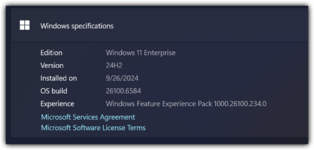
I decided I'd post this here for anyone who wants this guide. Windows 11 Enterprise custom built with UUPDump is by far the best way to go for a debloated and fresh Windows experience.
Note that this does not come pre-activated in any way. This is building an ISO from the files from official Microsoft files. You'll need to activate it with a genuine Windows license key.
Have fun!
Step 1. Go to https://uupdump.net. Under Windows 11, select whichever edition you want. I recommend the latest, 25H2.
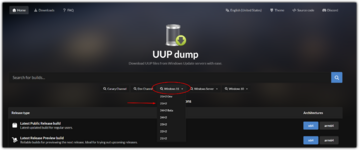
Step 2. Select the latest build, make sure you select the right system architecture.
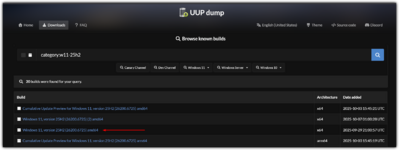
One small note, if you see a (2), that one might be the correct one. When you actually try and build the ISO, one will say "there's been an error because the update isn't on Microsoft's servers". If that happens to you, try the other one.
On the choose edition page, only select Pro

I personally use the following settings

At a minimum, select include other editions and check Enterprise. You'll also need to include updates for this to work, so leave it checked.
One small note, if you see a (2), that one might be the correct one. When you actually try and build the ISO, one will say "there's been an error because the update isn't on Microsoft's servers". If that happens to you, try the other one.
On the choose edition page, only select Pro
I personally use the following settings
At a minimum, select include other editions and check Enterprise. You'll also need to include updates for this to work, so leave it checked.
Step 3. Download your zip and extract it
Step 4. Open ConvertConfig.ini
If you don't want Edge, set SkipEdge to 1. Note that for this to work, you do need 24H2 or newer. This option doesn't work on previous Windows 11 editions.
Set CustomList to 1
Set vDeleteSource to 1 if you do not want Windows 11 Pro in the ISO. This will speed things up in the creation of the ISO, especially if you only intend to use Enterprise
My final file for 25H2 looks like this:
If you don't want Edge, set SkipEdge to 1. Note that for this to work, you do need 24H2 or newer. This option doesn't work on previous Windows 11 editions.
Set CustomList to 1
Set vDeleteSource to 1 if you do not want Windows 11 Pro in the ISO. This will speed things up in the creation of the ISO, especially if you only intend to use Enterprise
My final file for 25H2 looks like this:
INI:
[convert-UUP]
AutoStart    =1
AddUpdates   =1
Cleanup      =1
ResetBase    =0
NetFx3       =0
StartVirtual =1
wim2esd      =0
wim2swm      =0
SkipISO      =0
SkipWinRE    =0
LCUwinre     =0
LCUmsuExpand =0
UpdtBootFiles=0
ForceDism    =0
RefESD       =0
SkipLCUmsu   =0
SkipEdge     =1
AutoExit     =0
DisableUpdatingUpgrade=0
AddDrivers   =0
Drv_Source   =\Drivers

[Store_Apps]
SkipApps     =0
AppsLevel    =0
StubAppsFull =0
CustomList   =1

[create_virtual_editions]
vUseDism     =1
vAutoStart   =1
vDeleteSource=1
vPreserve    =0
vwim2esd     =0
vwim2swm     =0
vSkipISO     =0
vAutoEditions=Enterprise
vSortEditions=Step 5. Open CustomAppsList.txt
You can now comment out the apps you don't want and uncomment the apps you want bundled. I personally comment out the following:
Leave Microsoft.SecHealthUI and Microsoft.DesktopAppInstaller both selected!! You will run into issues if those aren't selected.
You can now scroll through the list and select any other apps you want. I personally like to uncomment Notepad, Windows Terminal, Paint, and Screen Sketch.
I also recommend uncommenting all of the packages under "### Media Codecs / Client non-N editions, Team edition". This gives you the codecs for various formats for free and preinstalled. This is most useful if you have an iPhone and have HEIC/HEIF photos.
Other than that, I leave everything else commented out. These files will not be included in the ISO.
You can now comment out the apps you don't want and uncomment the apps you want bundled. I personally comment out the following:
Diff:
- Microsoft.WindowsStore_8wekyb3d8bbwe
- Microsoft.StorePurchaseApp_8wekyb3d8bbwe
+ # Microsoft.WindowsStore_8wekyb3d8bbwe
+ # Microsoft.StorePurchaseApp_8wekyb3d8bbwe
Leave Microsoft.SecHealthUI and Microsoft.DesktopAppInstaller both selected!! You will run into issues if those aren't selected.
You can now scroll through the list and select any other apps you want. I personally like to uncomment Notepad, Windows Terminal, Paint, and Screen Sketch.
I also recommend uncommenting all of the packages under "### Media Codecs / Client non-N editions, Team edition". This gives you the codecs for various formats for free and preinstalled. This is most useful if you have an iPhone and have HEIC/HEIF photos.
Other than that, I leave everything else commented out. These files will not be included in the ISO.
Step 6. Run the "uup_download_windows.cmd" file. This will take a while, so go outside and enjoy life while it makes you the ISO. Once you have it, you can use it like any other ISO and burn it with Rufus or install it in a VM.
Note that this does not come pre-activated in any way. This is building an ISO from the files from official Microsoft files. You'll need to activate it with a genuine Windows license key.
Have fun!
Attachments

Last edited: