- 423
- IGN
- videogamesm12
Another business near me recently sent a huge amount of old, obsolete computers to a recycling center. A lot of them were Windows Vista-era business computers that could never run modern versions of Windows or handle modern tasks and I already had plenty of systems that would run retro games quite well already. However, when collecting computers I make exceptions for exotic or otherwise high-end computers of their time because either I find them intriguing or they fit a niche use case of mine.
Today's computer is a Sony VAIO desktop from early 2005, and I plucked it for the low low price of $0 for a few reasons.
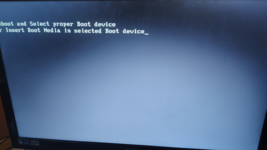
Whew. As you can see it posted just fine, but complained about the lack of a bootable device. This was expected - prior to the smoke test I had opened the computer up to evaluate the state of the system and found no hard drive installed. I took this as an opportunity to browse the system's BIOS and see what I had to work with. It's nothing really special - Pentium 4 clocked at 3.2 GHz with support for hyperthreading, 512 MB of RAM, an ATI Radeon X300, and two DVD drives. I have no idea if these specifications were good for the time and research online gives me mixed messages, but people who grew up with these kinds of computers (paging @Tizz for this one) might be able to fill us in on that.
If I want to use Windows XP on this system as was intended back in 2005, I can't just buy a SATA SSD off the shelf and then just stick it into the computer like I can with newer computers with newer operating systems and expect it to just work without consequences. Windows XP didn't support SSDs very well at all, and in fact running XP on such drives will wear them out faster because it never natively supported the TRIM command used by SSDs to optimize their performance. In the short term this isn't that big of a deal, but in the long term it poses problems with the drive's lifespan and performance. So, the idea of using SSDs was a no-go.
One idea I had was to take notes from popular retro computing circules where instead of using mechanical hard drives in all their old computers, they instead use a form of removable storage like SD cards or Compact Flash cards and connect everything up using an adapter. This would carry many benefits in terms of availability and convenience - CF and SD are still available pretty much everywhere so finding replacements in the event of a hardware failure or just running out of space would be trivial. Plus, if I wanted to transfer files over I could simply take the card out of the system and connect them to my main system using a USB adapter. However, this would also carry its own set of downsides. Most of the internal SD/CF adapters I could find online use the IDE interface and not SATA, so I would have to be connecting adapters to adapters just to get it to work in my system, and that introduces extra points of failure. Furthermore, Windows XP doesn't natively support booting from removable storage media like this.
The easiest solution would obviously be to find a mechanical hard drive that supports SATA and install it. However, at the time, I wasn't sure if the computer needed special mounts to install desktop hard drives and for some reason Amazon was being completely retarded and would show me listings for SSDs when I very clearly wrote "SATA hard disk drive" in the search box, So, I explored options for laptop hard drives and ultimately decided to repurpose a very old laptop-size SATA hard drive I had taken out of my PlayStation 3 back in 2020 and left stashed. I later realized that I was an idiot and could literally take a desktop hard drive and slot it in without any mounting screws or brackets required. I'll probably do this again because the hard drive I put to use is an old 80 GB hard drive from ~2008. With a hard drive now installed, it was now just a matter of reinstalling Windows on it.
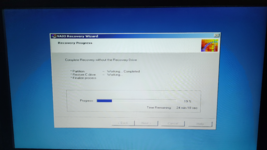
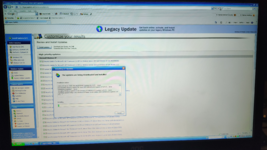
After going through the hilariously lengthy Windows out of box experience, I was then prompted to reinsert the recovery DVDs again so that it would reinstall all the OEM bloat that the computer came with. Why they didn't just preload it from the get-go is beyond me, but it took quite a bit longer until things finally got fully installed and ready to go. I spent most of that time watching The Truman Show with some folks from the Granite Castle. With that done, I wanted to get it connected to the internet so I could install some useful programs and get it up to date, which was an ordeal in itself. After connecting a USB Wi-Fi adapter to it and installing the drivers, I had to connect it to my phone's hotspot configured in such a way where zero authentication or anything like that was present, because every time I tried to connect it to my home Wi-Fi it would just complain about the password not meeting some random arbitrary requirements. Regardless, I was able to get it online and began installing updates with the help of Legacy Update.
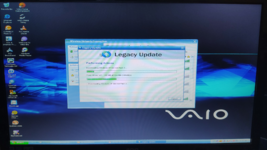
However, while the system was updating, I noticed that it was becoming increasingly slow and unresponsive even when absolutely nothing was happening. To see if the graphics card was overheating or something like that, I opened the computer's cover and touched the heatsink. Ouch! It was baking hot, and because there were no cooling fans on the computer, it would probably remain in this state perpetually. I also couldn't change the screen resolution to anything higher than 1280x1024 no matter where I looked, so obviously this built-in graphics card kind of sucked. Wouldn't it be nice if I had an okay graphics card on hand with a fan that starred in a very recent DankPods video which I plucked from another computer that was literally just about to get recycled?
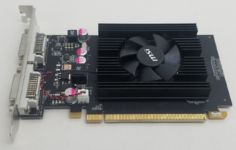
Not my picture, but it looks exactly like this.
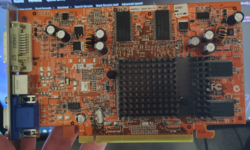
The graphics card I was upgrading from, for reference
After waiting for nearly 140 updates to download and install, I powered off the computer and replaced the ATI graphics card with the GeForce. The system came on and after waiting quite a bit to finish making post-update changes, I immediately started looking for drivers. While I was at first discouraged because a lot of the drivers I was seeing was for Windows 7 and newer on third party websites, Nvidia to their credit still hosts installers for Windows XP drivers for their older cards. One thing I was worried about was driver compatibility for Media Center Edition - I had seen reports that despite running under what is essentially the same foundation, drivers for Windows XP wouldn't run very well on Windows XP Media Center Edition 2005. However, in my case I seemed to have gotten lucky, because the drivers installed just fine. After restarting the computer, I was greeted with a nice crisp 1920x1080 resolution for once. Finally.
Everything seems to run a bit smoother and less choppy, so I think the upgrade worked out, though the card doesn't have much free room to breathe.
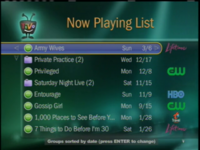
So, how does it handle capturing analog video compared to my current setup? Well, it depends on the kind of person you are and what you prefer. I personally think it looks shockingly better than the USB capture card I was using before because of how much sharper certain graphics and text looked on the built-in TV tuner, but some other people I asked felt that the brighter picture of my USB capture card made enough of a difference to matter. Pictured below are screenshots from video captures done by both devices. The one on the left is my current USB capture card running on my main computer under Linux and the one on the right is from the computer's built-in TV tuner captured using VLC.
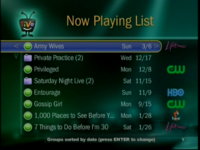
Also included below are recordings I took which show how both handle motion in video, though they probably aren't the best since the motion is fairly subtle. However, I still hope it's noticeable enough to the naked eye. If not, here's a test recording I took demonstrating various menus and even a bit of video playback that I uploaded to my dedicated archive channel, though the video quality during the playback section isn't the best because the owner of the Tivo set everything to record at the lowest quality possible in the interest of maximizing how much space they had.
Honestly, regardless of whether it looks better or not, I'm just surprised how good this looks for something made in 2005. I've seen video capture jobs done much worse using modern day hardware from big companies like Elgato! Was our view of what video captures from 2005 are like that badly skewed by how video compression was done in the early 2000s to minimize bandwidth usage?
This computer's main purpose first and foremost was to be the all-in-one entertainment box in the living room, and most of its bells and whistles were geared towards this goal to at least some extent. Windows Media Center itself was designed to be readable from the couch, and the computer would come with a remote that let you control it like as if it were any other set-top box. It attempts to replace multiple devices you'd expect to see in a living room such as:
Until then, see you in the next thread.
Today's computer is a Sony VAIO desktop from early 2005, and I plucked it for the low low price of $0 for a few reasons.
- It was very clearly intended to be used as a media center. One of the expansion cards installed had what appeared to be inputs for Composite, S-Video, and analog RF. Furthermore, it came with a product key for Windows XP Media Center 2005. Such computers are relics of a much simpler time when it seemed like the sky was the limit for what you could do with a computer, and companies capitalized on this trend hugely in the 2000s with devices mainly focused on multimedia. I'm not sure why, but I find systems that fit this niche category incredibly fascinating.
- I have recently picked back up the hobby of digitizing and preserving analog media from the early 2000s. I have been using a simple USB capture card I got from a thrift store years ago in tandem with a computer running with Linux and while the results have been generally good, it's not a perfect device and capturing often requires me to use my main computer to do the work. So, having a computer I can offload the task of capturing tapes and Tivo recordings onto seems like a generally good idea. Plus, it turns out that a lot of TV tuner cards and VHS capture devices from the 2000s actually delivers significantly better results than most modern capture solutions! Assuming the video quality it produces is good, this would be a great way of killing two birds with one stone.
- I have never owned a Sony-branded computer before and I never even saw one in any of the stores I went to growing up, so they always had somewhat mystical properties to me. It fulfills some childhood fascination I've had in that brand of computers.
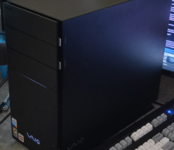
- I really like how it looks. If it weren't for the stickers on the front telling me its specs, I would have assumed from the case alone that it was a much newer computer than it actually was. Sony knew very well how to design a sharp looking product whose design would last the test of time. I have attached a picture of the computer, but I couldn't find a good place to put it.
Does it even power on?
A pretty serious concern that came up first and foremost was whether it would power on at all. The computer was manufactured in February 2005, right in the midst of what has now been dubbed the "capacitor plague". Millions of computers and other electronic devices manufactured between 1999 and 2007 used faulty capacitors that would eventually leak corrosive fluids and damage the boards they were installed on. If enough components get damaged, then at best the computer starts to act moody and at worst it's a fire hazard. Furthermore, the nature of the place I got it from meant that I was really taking my chances on whether it would even work at all. I plugged it in, crossed my fingers, and hit the power button.Whew. As you can see it posted just fine, but complained about the lack of a bootable device. This was expected - prior to the smoke test I had opened the computer up to evaluate the state of the system and found no hard drive installed. I took this as an opportunity to browse the system's BIOS and see what I had to work with. It's nothing really special - Pentium 4 clocked at 3.2 GHz with support for hyperthreading, 512 MB of RAM, an ATI Radeon X300, and two DVD drives. I have no idea if these specifications were good for the time and research online gives me mixed messages, but people who grew up with these kinds of computers (paging @Tizz for this one) might be able to fill us in on that.
The $0 Hard Drive Installation
To make the computer useful, I obviously needed to install a drive that the computer can boot from. The computer actually uses both IDE and SATA simultaneously, and this is a result of being manufactured during a weird transitory point in time where manufacturers were starting to use SATA whenever they could, but they couldn't move everything yet as optical drives (which still relied on IDE for the most part) hadn't caught up yet. In my case, the system was using IDE entirely for its two DVD drives and then SATA for internal hard drives. While this was probably great for futureproofing the system in the coming years, nowadays it actually presents a bit of a logistical problem when it comes to actually finding good replacement drives in the year 2025.If I want to use Windows XP on this system as was intended back in 2005, I can't just buy a SATA SSD off the shelf and then just stick it into the computer like I can with newer computers with newer operating systems and expect it to just work without consequences. Windows XP didn't support SSDs very well at all, and in fact running XP on such drives will wear them out faster because it never natively supported the TRIM command used by SSDs to optimize their performance. In the short term this isn't that big of a deal, but in the long term it poses problems with the drive's lifespan and performance. So, the idea of using SSDs was a no-go.
One idea I had was to take notes from popular retro computing circules where instead of using mechanical hard drives in all their old computers, they instead use a form of removable storage like SD cards or Compact Flash cards and connect everything up using an adapter. This would carry many benefits in terms of availability and convenience - CF and SD are still available pretty much everywhere so finding replacements in the event of a hardware failure or just running out of space would be trivial. Plus, if I wanted to transfer files over I could simply take the card out of the system and connect them to my main system using a USB adapter. However, this would also carry its own set of downsides. Most of the internal SD/CF adapters I could find online use the IDE interface and not SATA, so I would have to be connecting adapters to adapters just to get it to work in my system, and that introduces extra points of failure. Furthermore, Windows XP doesn't natively support booting from removable storage media like this.
The easiest solution would obviously be to find a mechanical hard drive that supports SATA and install it. However, at the time, I wasn't sure if the computer needed special mounts to install desktop hard drives and for some reason Amazon was being completely retarded and would show me listings for SSDs when I very clearly wrote "SATA hard disk drive" in the search box, So, I explored options for laptop hard drives and ultimately decided to repurpose a very old laptop-size SATA hard drive I had taken out of my PlayStation 3 back in 2020 and left stashed. I later realized that I was an idiot and could literally take a desktop hard drive and slot it in without any mounting screws or brackets required. I'll probably do this again because the hard drive I put to use is an old 80 GB hard drive from ~2008. With a hard drive now installed, it was now just a matter of reinstalling Windows on it.
The $0 Windows Installation
When the computer was new, it came with a copy of Windows XP Media Center Edition 2005, a derivative of XP Professional. I didn't have a copy of that edition on hand and I wanted to experience what it would have been like to power on the computer for the first time back in 2005, so I opted to burn a copy of the recovery media that would have come with the system back then and thankfully, said recovery media has been archived for almost 4 years now. After burning the DVDs and figuring out that the top DVD drive is slightly borked, I successfully restored the system back to factory defaults.After going through the hilariously lengthy Windows out of box experience, I was then prompted to reinsert the recovery DVDs again so that it would reinstall all the OEM bloat that the computer came with. Why they didn't just preload it from the get-go is beyond me, but it took quite a bit longer until things finally got fully installed and ready to go. I spent most of that time watching The Truman Show with some folks from the Granite Castle. With that done, I wanted to get it connected to the internet so I could install some useful programs and get it up to date, which was an ordeal in itself. After connecting a USB Wi-Fi adapter to it and installing the drivers, I had to connect it to my phone's hotspot configured in such a way where zero authentication or anything like that was present, because every time I tried to connect it to my home Wi-Fi it would just complain about the password not meeting some random arbitrary requirements. Regardless, I was able to get it online and began installing updates with the help of Legacy Update.
However, while the system was updating, I noticed that it was becoming increasingly slow and unresponsive even when absolutely nothing was happening. To see if the graphics card was overheating or something like that, I opened the computer's cover and touched the heatsink. Ouch! It was baking hot, and because there were no cooling fans on the computer, it would probably remain in this state perpetually. I also couldn't change the screen resolution to anything higher than 1280x1024 no matter where I looked, so obviously this built-in graphics card kind of sucked. Wouldn't it be nice if I had an okay graphics card on hand with a fan that starred in a very recent DankPods video which I plucked from another computer that was literally just about to get recycled?
The $0 Graphics Card Upgrade
Along with the Sony, I had plucked a few parts from various computers in the pile in the hopes of using them for future projects like this one. One of my lucky grabs was an Nvidia GeForce 210 which I had pulled out of a Dell desktop computer. Coincidentally, a graphics card of the same type was actually recently showcased in a DankPods video, though the model he had didn't even have any cooling fans and had an incredibly goofy looking heatsink instead, whereas mine did have a cooling fan and looked to be more low profile. I didn't use this card because I thought it would be good for gaming, I just wanted something that wouldn't struggle to render anything or get molting hot just at the simple resolution of 1280x1024.Not my picture, but it looks exactly like this.
The graphics card I was upgrading from, for reference
After waiting for nearly 140 updates to download and install, I powered off the computer and replaced the ATI graphics card with the GeForce. The system came on and after waiting quite a bit to finish making post-update changes, I immediately started looking for drivers. While I was at first discouraged because a lot of the drivers I was seeing was for Windows 7 and newer on third party websites, Nvidia to their credit still hosts installers for Windows XP drivers for their older cards. One thing I was worried about was driver compatibility for Media Center Edition - I had seen reports that despite running under what is essentially the same foundation, drivers for Windows XP wouldn't run very well on Windows XP Media Center Edition 2005. However, in my case I seemed to have gotten lucky, because the drivers installed just fine. After restarting the computer, I was greeted with a nice crisp 1920x1080 resolution for once. Finally.
Everything seems to run a bit smoother and less choppy, so I think the upgrade worked out, though the card doesn't have much free room to breathe.
The $0 Analog Video Capture Device
For reference, my current setup entails connecting a USB capture card I got at a thrift store years ago to my computer and recording the footage in a Linux environment using something like OBS or FFmpeg. While this has offered much better results than anything that could have been pulled off under Windows, the setup is still far from perfect and I've been getting the feeling that the picture I'm getting is subpar in one way or another compared to what previous setups were like.So, how does it handle capturing analog video compared to my current setup? Well, it depends on the kind of person you are and what you prefer. I personally think it looks shockingly better than the USB capture card I was using before because of how much sharper certain graphics and text looked on the built-in TV tuner, but some other people I asked felt that the brighter picture of my USB capture card made enough of a difference to matter. Pictured below are screenshots from video captures done by both devices. The one on the left is my current USB capture card running on my main computer under Linux and the one on the right is from the computer's built-in TV tuner captured using VLC.
Also included below are recordings I took which show how both handle motion in video, though they probably aren't the best since the motion is fairly subtle. However, I still hope it's noticeable enough to the naked eye. If not, here's a test recording I took demonstrating various menus and even a bit of video playback that I uploaded to my dedicated archive channel, though the video quality during the playback section isn't the best because the owner of the Tivo set everything to record at the lowest quality possible in the interest of maximizing how much space they had.
Honestly, regardless of whether it looks better or not, I'm just surprised how good this looks for something made in 2005. I've seen video capture jobs done much worse using modern day hardware from big companies like Elgato! Was our view of what video captures from 2005 are like that badly skewed by how video compression was done in the early 2000s to minimize bandwidth usage?
The $0 Desktop Media Center
As I looked through the computer and all the crap that came preloaded on it, I found myself trying to understand the era this computer came from. While a lot of home-hosted solutions for having an all-in-one media center experience have since come a long way, back then the idea of having a computer that would effectively be your central all-in-one entertainment hub by replacing your VCR/DVD recorder, cable box, radio, and all that was practically unheard of at the time and I think it was pretty ahead of its time.This computer's main purpose first and foremost was to be the all-in-one entertainment box in the living room, and most of its bells and whistles were geared towards this goal to at least some extent. Windows Media Center itself was designed to be readable from the couch, and the computer would come with a remote that let you control it like as if it were any other set-top box. It attempts to replace multiple devices you'd expect to see in a living room such as:
- Your VCR / DVR
You could set up the computer to extend your existing setup to add recording functionality in much the same way as you could hook up a VCR. If you wanted to use your existing cable box or had satellite TV, Microsoft sold special devices which would interface with your cable box by sending signals via infared like a TV remote. Using the built-in TV guide which would download listings from Microsoft's servers, you could schedule recordings much in the same way that a VCR could and watch them at any time, and you didn't even have to pay a subscription to do it unlike the competing options at the time. Recordings would be saved in some bespoke proprietary format called DVR-MS, but options existed even back then to convert these recordings into traditional file formats like MKV, MPG, and MP4.
- Your Cable Box / TV Tuner
If you had cable TV, it was also possible for you to ditch your existing cable box entirely and hook your computer up directly to your cable provider's line and receive TV signals that way, however in those cases you would need to get a CableCARD to be able to decrypt and watch the protected signals. That way, you wouldn't have to rely on some IR blaster device to tune into channels and could just... do it. If you instead got TV via an antenna, you could simply hook the computer up directly to the antenna without needing to worry about CableCARD or IR blasters and it would just work.
- Your DVD Player
Media Center gives you the option to watch DVDs by wrapping around existing decoding software like WinDVD. A lot of computers of this era did this, though integrating it into an all-in-one entertainment center program was a no-brainer.
- Licensing-wise, it was confusing and annoying
Unlike Windows Vista and 7 which bundled it with Home Premium and higher end editions (and thus would be on pretty much every home PC you bought at your local Walmart), there was no way to get Windows Media Center separately and install it onto an existing installation of Windows. You could not purchase a license for Windows XP Media Center edition directly either, you had to buy a prebuilt computer from specific OEMs specifically built for the task of being a media center.
- On the software level, it wasn't any better
XP's implementation of Media Center was a painfully jank hackjob that was basically bolted onto the Professional SKU, but then still repackaged as an entirely separate edition of the operating system. Sometimes, drivers for specific video cards that would work on standard versions of Windows XP wouldn't work on the Media Center Edition for what seemed like completely arbitrary reasons.
- Its casting functionality was dogwater
Media Center offered a precursor to what we now call "casting" called Media Center Extenders which would allow you to connect certain devices to a single media center box and stream from it simultaneously. Multiple companies offered devices you could cast to and even Microsoft themselves offered casting features for game consoles like the original Xbox and the Xbox 360. Copy protected content like DVDs, literally any form of HDTV media (not like it would have mattered since the computer didn't support it but still), or content recorded from "premium cable" providers like HBO couldn't be casted onto these extenders.
The $0 Conclusion
Thanks for reading this. It was kind of eye-opening how clunky things actually were in practice and the system was a fun project to spend a night or two working on. In the coming days, I want to really start using it as a capture box using VLC and reinstall everything on a proper 1 TB hard drive to store everything on. In the future, I plan to write another thread like this about a Dell I acquired a few months ago which was insanely high-end and overkill for its time.Until then, see you in the next thread.