- 423
- IGN
- videogamesm12
Someone recently came to me with a box of old computer junk looking to recycle everything inside it. While most of the parts in the box were from what looked like an ancient partially disassembled Toshiba laptop which had no chance of running a modern operating system in today's age and wasn't interesting enough for me to care about, among the pile of scrap parts was a filthy but otherwise perfectly intact MacBook Pro from 2009 along with its original charger. Because the only other Mac I have has a bad graphics card that makes it nigh unusable in its current state, I decided to take my chances again and plucked the laptop out of the box for the low low price of $0. This thread will mostly be going over the shenanigans I have with the system as I properly experience Mac OS X Snow Leopard and beyond for the first time.
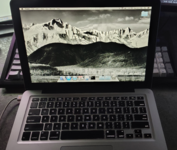
I had to get some flat picks from a kit I had to to pry the lid cover off and even then it took some effort to get it to budge, but I managed to do it and the computer already looked much better as the lid of the screen underneath was in immaculate condition. That cover was probably on it for its entire lifespan. I then got some cleaning wipes and started wiping down the computer and its power cable, which got rid of a lot of the dirt and grime and made the computer much more presentable and I no longer felt like I had to wash my hands every time I held the computer.
This turned out to be slightly easier said than done and also a bit confusing. Unlike Windows and Linux where the operating system is officially available in the form of a burnable ISO image that most contemporary free programs like ImgBurn can use and burn to a DVD, Mac OS X's images are some bespoke proprietary format called DMG, which ImgBurn simply doesn't support. I've heard that programs like PowerISO supposedly can work with DMG files, but I am not dishing out $40 for a piece of software that I'll only use once for a specific niche case when I can find better options which won't take my time or money. After digging up a program that supposedly converts DMG files to ISO files, I began downloading an image of the Snow Leopard installation media I found on the Internet Archive. After waiting several minutes to download a 7.5 GB file, I ran the conversion tool, only for it to bomb out with an error about being unable to read the image file.
Rats. Either the image got corrupted or the tool I found doesn't work with Mac OS installation media. I then looked at the entry on the Internet Archive and found an ISO image, but it was named after Boot Camp, which we will discuss later, so I assumed it was a separate thing entirely and decided to look elsewhere for an ISO image of the actual OS X installer. I found a link to a different copy of the installation media that was also hosted on the Internet Archive that was actually an ISO image this time. Out of curiosity, I opened the freshly downloaded ISO image with 7zip, only to find files entirely for Boot Camp. Was I hoodwinked or am I retarded? As it turns out, I was retarded. The installation media has multiple partitions so that different things show up under different operating systems. It was likely the same way for the Boot Camp ISO mentioned earlier. Oh well, now I can actually burn the DVD - oh wait!
Standard blank DVD are usually only single-layer disks that can only hold up to 4.7 GB. While I had a metric ton of blanks which worked fine for DVD recorders and burning disk images like software, the disk images for Snow Leopard were around 7.5 GB large and thus wouldn't fit on a single disk. Fortunately, I had a 5 pack of dual-layer DVD+Rs which had previously gone unused because the DVD recorder I wanted to use them with didn't support dual-layer DVD+Rs. I started burning the disk image and in the meantime my desktop's time resynced, skewing the elapsed time by 6 hours. Oops.
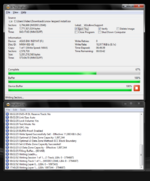
I was a bit concerned that ImgBurn would only burn the file system it recognized from Windows and ignore the Mac-only part of the installation, but thankfully it burned just fine. Let's begin.
I went through the out of box experience as per usual until it reached the network section. I tried connecting it to my home Wi-Fi network, only to get a vague message that there was an error while trying to connect to the network. This appears to be a software issue related to how my home Wi-Fi is set up, so I opted to skip connecting to the internet for now and just create my local user account. I noticed that a lot of the user icons were strangely similar to the ones used in Windows XP and Windows 7, but whatever. After being forced to play a game of "pin the tail on the donkey" to pick my timezone, I was pretty much done with setting up the computer, and soon reached the OS X desktop.
Due to its age and comparatively short lifecycle, Snow Leopard suffers a severe case of a phenomenon that I call "software rot", where a program or operating system which was initially great during its lifetime begins to lose functionality as the services they rely on either cease to exist or become outright inaccessible due to differences in security protocols and certificate expirations. Unlike Windows where a combination of third party software and root certificate updates can make the operating system usable again in the modern day, older versions of Mac OS X require you to put in extra work to get everything working properly again and even then there's a chance that you will need a fix or patch that simply hasn't materialized yet. Not a lot of software these days even supports Snow Leopard anymore and haven't for a long time despite being about as old as the decently-supported Windows 7, mainly because Mac OS X's version support model differs greatly compared to Windows. While Windows 7 enjoyed a long lifespan of more than 10 years, support for Snow Leopard had already been dead in the water by 2014 as most people moved on to newer versions that would come out in the coming years. This, along with the fact I can't actually connect to my home Wi-Fi for some reason, means that using Snow Leopard like a lot of people did in the early 2010s would be one hell of a challenge. But, that's not for a lack of trying.
In its stock configuration, almost nothing that connects online seems to work. Due to advancements in web security standards, Safari is incapable of accessing most modern websites that use HTTPS, though with websites that still use regular HTTP it works just fine. FrogFind and Mozilla's FTP are enough to get more websites working, but beyond that the modern internet is nigh unusable. I also for some reason couldn't get iLife working on this system despite being intended for this version of OS X. Most components that work offline still work as expected though - I can watch DVDs and listen to music just fine, but there's not a lot of software that's like this. Plus, since the App Store doesn't work anymore I can't even get anything that would have worked offline.
So, let's retrofit it to make it more useful.
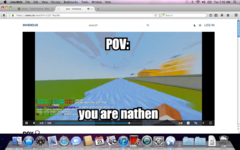
Most mainstream and alternative browsers like Firefox and Pale Moon either no longer support Snow Leopard, with the last updates for each being released 6 to 7 years ago. Most of the modern web has also moved on from then to use web elements not supported in these older browsers, so webpages usually appear broken or don't even load at all anymore. However, a very cool person named Jazzzny forked the last version of Pale Moon which still supported Snow Leopard and continues to maintain it under the name InterWeb. This fork actually supports most modern web standards including TLS 1.3 and a lot of the aforementioned modern web elements. The more intensive websites like YouTube also have much more lightweight alternatives like Invidious, so I was able to browse this forum and watch highly educational videos by a purple man pretty smoothly.
To get a bunch of old endpoints up and running again, I needed a way to work around the issue of not having the security protocols we need. Fortunately, I am not the first person to run into this issue, and as such another Mac turbonerd named wowfunhappy has since created an app for versions 10.6 all the way up to 10.10 which proxies HTTPS connections to make them work with the standards in older versions of OS X. Installing it was a breeze, but I did have to configure my network settings to proxy all connections internally. This got programs like iTunes and Safari working again, but even still something didn't feel right.
Even with everything I could get running, the lack of compatibility in many applications (including OpenOffice and VLC) means that my experience will still be objectively worse than Windows. With that in mind, I ultimately chose to upgrade to Mavericks. While later versions of the operating system did away with some of the skeuomorphism that these versions were so well-known for having, it did mean increased program compatibility and possibly even better performance. This was a worthwhile compromise.
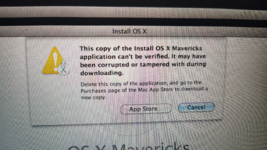
After doing some research online, I found a blogpost which boiled the cause of the issue down to the aforementioned software rot phenomenon I mentioned before. Setting the clock back by about 10 years seemed to validate whatever certificates were expired and got the installer working. The installation process took about an hour in total, but it was actually worth it for more reasons than just application compatibility. For the first time, I was actually able to connect the system to my home Wi-Fi while booted into OS X without having to do any extra steps. It just worked.
Even though the computer was definitely more useful now, I actually stopped using the computer after this as I came down with an illness that I'm still fighting as I'm writing this thread. I'll likely be using it to watch DVDs while I'm in bed because this thing makes for an awesome DVD player. I might post an update when I'm feeling better to explain how the OS X side of things got used in the long run once I feel better.
When Apple transitioned architectures from PowerPC to Intel, one advantage they gained was the ability for their hardware to natively run their competitor's operating systems and software as the hardware itself was compatible under the hood. Apple capitalized on this with the introduction of Boot Camp in Mac OS X 10.5, which included a bunch of utilities to make it possible to dual boot Windows with OS X. I don't know how popular this feature was because I am not a Mac nerd, but it must have been popular enough to be supported for more than 15 years until Apple transitioned architectures again from Intel to their own Apple Silicon architecture instead, which killed support for it.
For me, getting Windows 7 to install turned out to be a bigger pain in the neck than I had expected. Whenever I'd run the Boot Camp setup, it gave me what is quite possibly one of the most unhelpful error messages I have ever seen - "The startup disk cannot be partitioned or restored to a single partition". What? It later elaborated with "The startup disk must be formated as a single Mac OS Extended (Journaled) volume or already partitioned by Boot Camp Assistant for installing Windows". That would have made sense if the start up disk wasn't already formatted with that exact partition and hadn't been meddled with at all by Boot Camp, so what the hell is it on about?
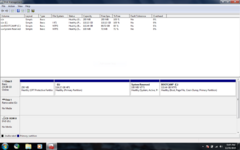
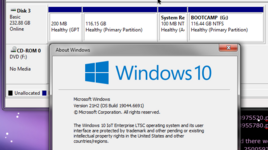
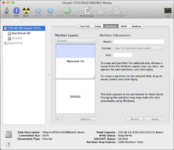
As it turns out, Disk Utility was outright lying to me about the partitions on the disk and treating me like a retard by hiding information I needed to know for this. Aside from the main OS partition where everything is stored, there were additional partitions that simply did not show up in Disk Utility including the EFI partition and the old recovery partition from El Capitan I previously mentioned. When I reinstalled the operating system and nuked the otherwise empty OS partition, I accidentally left behind the recovery partition from OS X El Capitan and just assumed it would either be nuked along with the rest of everything on the disk or be so inconsequential it wouldn't matter. I was clearly wrong, because this setup was apparently so offensive to Boot Camp it refused to anything with that partition until it was gone. Great.
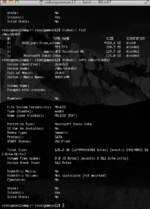
The solution offered on Apple's support forum seemed simple enough - just run a sudo command with diskutil (which wasn't lying unlike Disk Utility) to merge the main partition with recovery partition to reclaim any of that extra disk space. However, it flat out refused to do it by complaining that such a task required a newer version of Mac OS X. Bruh. I tried seeing if there was a way to simply delete the partition, but I was way out of my element at this point and because I was getting annoyed, I said fuck it and booted the computer into Arch Linux to delete the partition from there using FDisk, which worked without a hitch and it seemed to make Boot Camp happy, so I didn't care. After Boot Camp repartitioned the drive to split the disk equally, the computer then rebooted to start the Windows 7 setup. This is where I ran into my next hurdle - none of my Windows 7 Enterprise DVDs were working.
The first disk I had would just hang at the "Windows is loading files" screen at like 90% and do nothing. It seemed to have some minor scratches, so I tried using another DVD I had burned after I lost the first one. It was even worse - the Mac didn't even recognize it as a valid disk and thought it was a blank DVD. Dang it. I could probably dig up an 8 GB USB flash drive and etch the Windows 7 Enterprise installer onto it, burn another DVD, or just use a Windows 7 Professional disk, but I strongly prefer using Enterprise when I get the chance.
Since I had no immediate choice, I dug out an authentic Windows 7 Professional DVD I had lying around and inserted that into the computer instead. The Windows 7 installer booted without issue and I got to installing the operating system, which took longer than I had initially expected but was probably typical for computers of the time which had mechanical hard drives and CPUs of this tier. Afterwards, I got into the Windows out of box experience, saw a screen I had never seen before, and reached the desktop. I then installed drivers for all the hardware in the computer using the OS X installation DVD I burned earlier and enabled the Windows Aero theme. Afterwards, I tried to connect the system to my home Wi-Fi which worked flawlessly.
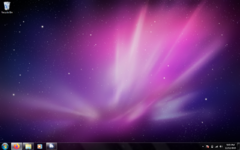
Whenever I install a new instance of Windows 7, the first things I do are connect it to the internet, install Mozilla Firefox using its FTP endpoint, install Legacy Update (which includes updates for root certificates), and then focus on installing drivers. This case was no exception, though I chose to install drivers first just to make my life a little bit easier. Firefox for some reason doesn't yet have many of the same issues that Windows itself has with certificates and HTTPS, so it makes finding drivers online far easier when the built-in options don't work anymore. Updating the operating system did go by pretty seamlessly, though by the end TrustedInstaller was eating up the Mac's measly 4 GB of RAM, causing some noticeable slowdown as the system started falling back onto the pagefile (aka virtual memory).
To actually use the internet, I installed a few browsers. Firefox is always a great launch point to get everything started from, though in this computer's case it really chugged for some reason whenever I'd do literally anything. To see if it was just modern Firefox being too heavy for this computer, I installed an older version of Pale Moon (versions newer than 32.5.2 require a specific processor instruction which everything from before 2011 lacks support for) which is based on an older version of the browser. Pale Moon seems to be a bit more lightweight and definitely has a more retro aesthetic to it, but it's still not as speedy as I'd hoped and some websites don't work properly on it anymore. To see how literally any other browser would handle it, I installed Supermium and enabled the setting where it uses an old looking old UI. Supermium seems to run a lot better on this computer, so I'll likely set it as my default browser in this case.
For office work, I chose to install both LibreOffice and OpenOffice. While LibreOffice is much better than OpenOffice in pretty much every way as it has a more active development cycle and better compatibility with other formats like from Microsoft Office, documents written in LibreOffice might experience compatibility issues when opened in OpenOffice (which I have to still use on the Mac OS side of things as mentioned before) and LibreOffice doesn't even support Windows 7 anymore starting with version 25.8. OpenOffice on the other hand still supports versions of Windows going back to XP and its more conservative development cycle could mean a higher focus on stability rather than having more features.
For meaningful communication with the outside world, I decided to try using Discord with a twist: instead of using the official client, I'd use an alternative built for older systems called Discord Messenger. Unlike 95% of Discord clients available (including the official client), Discord Messenger isn't a web-based application built on top of Google's incredibly wasteful Chromium engine and instead handles all of the graphical shenanigans and API calls on its own. This helps to cut down massively on resource usage, though at the cost of features and also being quite ugly. That's fine, I don't care about visuals as long as the damn thing worked.
One thing I found interesting is that Boot Camp includes native support for their file systems on the Windows side. This is actually pretty awesome, but the only problem is that it's entirely read-only. Attempting to copy or write files to my user folder on the OS X partition just fails with a generic "permission denied" error, so obviously transferring files back and forth between the two operating systems will likely require me to manually copy the files onto an external drive as a middleman. I can't really complain, because my experience with third party filesystem drivers for Windows have always been a bit unreliable - one kept locking up any I/O access and the other literally caused irreversible data corruption as it broke write caching. If this is what it takes to keep things stable, I'm fine with that.
After pulling out the hard drive to salvage the data within the Windows partition (including a draft I had been working on for this very thread), I then turned my attention to the OS X side of things. Fixing the boot process was easy enough as all I had to do was boot into the Mavericks installation media I etched earlier and repair the disk with Disk Utility, which got the OS X side of things working properly again, but the Windows partition was still broken. I could spend even more time trying to figure out why this was happening, but at this point I started to feel under the weather as I caught some sort of illness during the holiday season that I'm still reeling from, so I instead said fuck it and reinstalled the operating system from scratch. I had already recovered enough data from the partition before, so I wasn't too concerned about getting things back to the way they were before. This is especially compounded by the fact I don't need to use Windows anymore to do most modern tasks as Mavericks does the job far better than Snow Leopard.
There was a moment where I tried to get Windows 7 installed and running under the EFI mode of the Mac so I could actually ditch this weird, yee-yee ass hybrid MBR system they got going on, but even with VgaShim and UEFISeven I couldn't even get it into the installer. So, I bit the bullet and installed the OS using the MBR method again. This went without a hitch and I was pretty much spent at this point, so I just put the computer away and spent the next few days suffering from the stupid illness. This is where we are at today.
The screen is fantastic, even though it's comparatively low resolution by today's standards. I have been using Windows 7 for more than a decade at this point and this is quite possibly the best I've seen it look. The colors are vibrant, the contrast is rich, and the picture is sharp. I can't demonstrate this with a picture as my phone's camera wouldn't be able to pick it up the best and either way you'd be looking at it through your own monitor, but in person it looks absolutely stunning. The only real drawback is that the screen resolution is merely 1280 x 800, but most programs fit in this resolution just fine and I couldn't see the pixels individually like I could with many other laptops.
Design-wise, the computer has aged well. Despite being 16 years old and being on the thicker side, the design language remains pretty much the same. If you look at what other leading competing manufacturers were doing at around the same time, the contrast is even starker. Computers of this era were excessively glossy and quite chunky, so they'd collect fingerprints to hell and back and whatever texture they'd have would quickly wear off with time. I know I like to be nostalgic about older computers being better, but some systems just haven't aged well.
My only issue is that its hardware is honestly fairly lackluster. Hardware limitations are still a concern when it comes to for day to day use today even under an operating system as lightweight as Windows 7. For example, I can still browse most modern websites without any problems, Just watching a video in 480p on YouTube causes the CPU usage to go up to around 50%, and it gets even worse when you're watching a video in 720p60. I doubt you'd be able to do any gaming on this thing even with its built-in dedicated graphics card.
Either way, I do like using this system and I've been taking it to work with me to use during the off periods at work. It's honestly pretty good.
Does it even work?
It seems that Apple had a really hard time in the early 2000s with getting graphics hardware that wasn't somehow defective in some way or another, because apparently MacBooks from around the same timeframe are alleged to have defects in either the firmware or hardware of their graphics cards which would cause them to eventually fail. While Apple initially ignored reports of these issues, they eventually responded by either offering to replace the motherboards free of charge within 4 years of purchasing it or straight up recalling the systems altogether. Fortunately, it seems this model was not affected because despite its physical condition it still powered on just fine. However, the system seemed to have been wiped clean as it was booting into the recovery partition for OS X El Capitan and nothing else.Cleaning the computer
The computer was quite dirty - lots of dirt and grime on the body and keyboard, the screen was practically covered with fingerprints (which was weird because this wasn't a touch screen), and it had weird transparent red cover on the back of the screen which was in terrible shape and even started to feel a bit sitcky, so when I brought the computer home I decided to give it and its power supply a good cleaning.I had to get some flat picks from a kit I had to to pry the lid cover off and even then it took some effort to get it to budge, but I managed to do it and the computer already looked much better as the lid of the screen underneath was in immaculate condition. That cover was probably on it for its entire lifespan. I then got some cleaning wipes and started wiping down the computer and its power cable, which got rid of a lot of the dirt and grime and made the computer much more presentable and I no longer felt like I had to wash my hands every time I held the computer.
Acquiring OS X Reinstallation Media
Since the computer was booting into an OS recovery menu and not giving me any issues like a blinking folder icon or whatever, I reasoned that the hard drive in the computer was not only present, but also still good enough to re-use for my own purposes. This means I can install an operating system. While some people would consider installing the last version of OS X that supported their particular models (in my case it would be El Capitan) or even go overboard and patch OpenCore to run much newer versions of OS X to make it more usable in the modern day, I instead opted to reinstall the operating system that this computer would have likely been the most comfortable running back in the day and experience the version of Mac OS that heavily influenced the Snow Leopard (formerly known as Night Sky) theme on this forum. Unfortunately, this computer didn't come with any installation media, so I would need to find and burn one myself.This turned out to be slightly easier said than done and also a bit confusing. Unlike Windows and Linux where the operating system is officially available in the form of a burnable ISO image that most contemporary free programs like ImgBurn can use and burn to a DVD, Mac OS X's images are some bespoke proprietary format called DMG, which ImgBurn simply doesn't support. I've heard that programs like PowerISO supposedly can work with DMG files, but I am not dishing out $40 for a piece of software that I'll only use once for a specific niche case when I can find better options which won't take my time or money. After digging up a program that supposedly converts DMG files to ISO files, I began downloading an image of the Snow Leopard installation media I found on the Internet Archive. After waiting several minutes to download a 7.5 GB file, I ran the conversion tool, only for it to bomb out with an error about being unable to read the image file.
Rats. Either the image got corrupted or the tool I found doesn't work with Mac OS installation media. I then looked at the entry on the Internet Archive and found an ISO image, but it was named after Boot Camp, which we will discuss later, so I assumed it was a separate thing entirely and decided to look elsewhere for an ISO image of the actual OS X installer. I found a link to a different copy of the installation media that was also hosted on the Internet Archive that was actually an ISO image this time. Out of curiosity, I opened the freshly downloaded ISO image with 7zip, only to find files entirely for Boot Camp. Was I hoodwinked or am I retarded? As it turns out, I was retarded. The installation media has multiple partitions so that different things show up under different operating systems. It was likely the same way for the Boot Camp ISO mentioned earlier. Oh well, now I can actually burn the DVD - oh wait!
Standard blank DVD are usually only single-layer disks that can only hold up to 4.7 GB. While I had a metric ton of blanks which worked fine for DVD recorders and burning disk images like software, the disk images for Snow Leopard were around 7.5 GB large and thus wouldn't fit on a single disk. Fortunately, I had a 5 pack of dual-layer DVD+Rs which had previously gone unused because the DVD recorder I wanted to use them with didn't support dual-layer DVD+Rs. I started burning the disk image and in the meantime my desktop's time resynced, skewing the elapsed time by 6 hours. Oops.
I was a bit concerned that ImgBurn would only burn the file system it recognized from Windows and ignore the Mac-only part of the installation, but thankfully it burned just fine. Let's begin.
Reinstalling Mac OS X
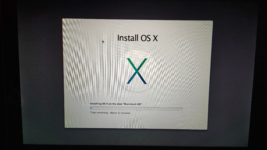
After booting into the OS X installation media, I almost immediately started the installation process. At first it complained about being unable to install to the internal drive with no explanation as for why not (unlike Windows which does tell you), but the error went away after going into the disk utility and nuking the only partition I could see. OS X started installing and after about 30 minutes, it finished without a hitch. I restarted the computer and the screen faded to black, before showing what is quite possibly the most iconic welcome video in the operating system's history.I went through the out of box experience as per usual until it reached the network section. I tried connecting it to my home Wi-Fi network, only to get a vague message that there was an error while trying to connect to the network. This appears to be a software issue related to how my home Wi-Fi is set up, so I opted to skip connecting to the internet for now and just create my local user account. I noticed that a lot of the user icons were strangely similar to the ones used in Windows XP and Windows 7, but whatever. After being forced to play a game of "pin the tail on the donkey" to pick my timezone, I was pretty much done with setting up the computer, and soon reached the OS X desktop.
Updating Snow Leopard
Because the installation media was for Mac OS X 10.6.0, I had quite a bit of updating to do. Assuming that it would work sort of like Windows with service packs, I first tried to update the operating system manually offline by downloading the latest update available for Snow Leopard (10.6.8) from Apple's website, copying it onto a USB flash drive, and running the installer. While at first it seemed like it was going to work, it then threw up an error saying that I needed 10.6.7 installed before I could do that. Darn it. I bit the bullet and turned on my hotspot to connect it to the internet and install updates that way, which worked and after everything was updated, I now had a fully up to date version of Snow Leopard.Using Snow Leopard
It's difficult for me to overstate just how much I liked Snow Leopard's look and feel. The glossy user interface is gorgeous, the wallpapers are iconic, and I love the look and feel that OS X of this era had. It's just a shame I can't use it for much today.Due to its age and comparatively short lifecycle, Snow Leopard suffers a severe case of a phenomenon that I call "software rot", where a program or operating system which was initially great during its lifetime begins to lose functionality as the services they rely on either cease to exist or become outright inaccessible due to differences in security protocols and certificate expirations. Unlike Windows where a combination of third party software and root certificate updates can make the operating system usable again in the modern day, older versions of Mac OS X require you to put in extra work to get everything working properly again and even then there's a chance that you will need a fix or patch that simply hasn't materialized yet. Not a lot of software these days even supports Snow Leopard anymore and haven't for a long time despite being about as old as the decently-supported Windows 7, mainly because Mac OS X's version support model differs greatly compared to Windows. While Windows 7 enjoyed a long lifespan of more than 10 years, support for Snow Leopard had already been dead in the water by 2014 as most people moved on to newer versions that would come out in the coming years. This, along with the fact I can't actually connect to my home Wi-Fi for some reason, means that using Snow Leopard like a lot of people did in the early 2010s would be one hell of a challenge. But, that's not for a lack of trying.
In its stock configuration, almost nothing that connects online seems to work. Due to advancements in web security standards, Safari is incapable of accessing most modern websites that use HTTPS, though with websites that still use regular HTTP it works just fine. FrogFind and Mozilla's FTP are enough to get more websites working, but beyond that the modern internet is nigh unusable. I also for some reason couldn't get iLife working on this system despite being intended for this version of OS X. Most components that work offline still work as expected though - I can watch DVDs and listen to music just fine, but there's not a lot of software that's like this. Plus, since the App Store doesn't work anymore I can't even get anything that would have worked offline.
So, let's retrofit it to make it more useful.
Retrofitting Snow Leopard
When it comes to retro systems, you always want to take inventory and use what you can to make the most out of it.Most mainstream and alternative browsers like Firefox and Pale Moon either no longer support Snow Leopard, with the last updates for each being released 6 to 7 years ago. Most of the modern web has also moved on from then to use web elements not supported in these older browsers, so webpages usually appear broken or don't even load at all anymore. However, a very cool person named Jazzzny forked the last version of Pale Moon which still supported Snow Leopard and continues to maintain it under the name InterWeb. This fork actually supports most modern web standards including TLS 1.3 and a lot of the aforementioned modern web elements. The more intensive websites like YouTube also have much more lightweight alternatives like Invidious, so I was able to browse this forum and watch highly educational videos by a purple man pretty smoothly.
To get a bunch of old endpoints up and running again, I needed a way to work around the issue of not having the security protocols we need. Fortunately, I am not the first person to run into this issue, and as such another Mac turbonerd named wowfunhappy has since created an app for versions 10.6 all the way up to 10.10 which proxies HTTPS connections to make them work with the standards in older versions of OS X. Installing it was a breeze, but I did have to configure my network settings to proxy all connections internally. This got programs like iTunes and Safari working again, but even still something didn't feel right.
Even with everything I could get running, the lack of compatibility in many applications (including OpenOffice and VLC) means that my experience will still be objectively worse than Windows. With that in mind, I ultimately chose to upgrade to Mavericks. While later versions of the operating system did away with some of the skeuomorphism that these versions were so well-known for having, it did mean increased program compatibility and possibly even better performance. This was a worthwhile compromise.
Upgrading to Mavericks
Upgrading to Mavericks was a bit of a rocky road at first. I first tried downloading its installer from the Internet Archive over Ethernet, but after mounting the installation media it would just bomb out with an error that the installer couldn't be verified. Assuming the installer may have somehow been corrupted at some point, I tried downloading it again from a different source using my main computer, then etching it onto a USB flash drive. Nope, it bombed out with the same error. I tried running the installer repeatedly to see what would happen, but nope.After doing some research online, I found a blogpost which boiled the cause of the issue down to the aforementioned software rot phenomenon I mentioned before. Setting the clock back by about 10 years seemed to validate whatever certificates were expired and got the installer working. The installation process took about an hour in total, but it was actually worth it for more reasons than just application compatibility. For the first time, I was actually able to connect the system to my home Wi-Fi while booted into OS X without having to do any extra steps. It just worked.
Even though the computer was definitely more useful now, I actually stopped using the computer after this as I came down with an illness that I'm still fighting as I'm writing this thread. I'll likely be using it to watch DVDs while I'm in bed because this thing makes for an awesome DVD player. I might post an update when I'm feeling better to explain how the OS X side of things got used in the long run once I feel better.
Installing Windows 7 using Boot Camp
As to be expected for someone like me, I looked into ways to run Windows 7 alongside OS X in a dual boot configuration, and it turns out this concept was actually fully supported by Apple as they introduced a new feature in Mac OS X 10.5 called Boot Camp. To anyone who isn't an Apple user, this might sound completely bonkers, but it actually made sense.When Apple transitioned architectures from PowerPC to Intel, one advantage they gained was the ability for their hardware to natively run their competitor's operating systems and software as the hardware itself was compatible under the hood. Apple capitalized on this with the introduction of Boot Camp in Mac OS X 10.5, which included a bunch of utilities to make it possible to dual boot Windows with OS X. I don't know how popular this feature was because I am not a Mac nerd, but it must have been popular enough to be supported for more than 15 years until Apple transitioned architectures again from Intel to their own Apple Silicon architecture instead, which killed support for it.
For me, getting Windows 7 to install turned out to be a bigger pain in the neck than I had expected. Whenever I'd run the Boot Camp setup, it gave me what is quite possibly one of the most unhelpful error messages I have ever seen - "The startup disk cannot be partitioned or restored to a single partition". What? It later elaborated with "The startup disk must be formated as a single Mac OS Extended (Journaled) volume or already partitioned by Boot Camp Assistant for installing Windows". That would have made sense if the start up disk wasn't already formatted with that exact partition and hadn't been meddled with at all by Boot Camp, so what the hell is it on about?
As it turns out, Disk Utility was outright lying to me about the partitions on the disk and treating me like a retard by hiding information I needed to know for this. Aside from the main OS partition where everything is stored, there were additional partitions that simply did not show up in Disk Utility including the EFI partition and the old recovery partition from El Capitan I previously mentioned. When I reinstalled the operating system and nuked the otherwise empty OS partition, I accidentally left behind the recovery partition from OS X El Capitan and just assumed it would either be nuked along with the rest of everything on the disk or be so inconsequential it wouldn't matter. I was clearly wrong, because this setup was apparently so offensive to Boot Camp it refused to anything with that partition until it was gone. Great.
The solution offered on Apple's support forum seemed simple enough - just run a sudo command with diskutil (which wasn't lying unlike Disk Utility) to merge the main partition with recovery partition to reclaim any of that extra disk space. However, it flat out refused to do it by complaining that such a task required a newer version of Mac OS X. Bruh. I tried seeing if there was a way to simply delete the partition, but I was way out of my element at this point and because I was getting annoyed, I said fuck it and booted the computer into Arch Linux to delete the partition from there using FDisk, which worked without a hitch and it seemed to make Boot Camp happy, so I didn't care. After Boot Camp repartitioned the drive to split the disk equally, the computer then rebooted to start the Windows 7 setup. This is where I ran into my next hurdle - none of my Windows 7 Enterprise DVDs were working.
The first disk I had would just hang at the "Windows is loading files" screen at like 90% and do nothing. It seemed to have some minor scratches, so I tried using another DVD I had burned after I lost the first one. It was even worse - the Mac didn't even recognize it as a valid disk and thought it was a blank DVD. Dang it. I could probably dig up an 8 GB USB flash drive and etch the Windows 7 Enterprise installer onto it, burn another DVD, or just use a Windows 7 Professional disk, but I strongly prefer using Enterprise when I get the chance.
For context, Windows 7 had multiple tiers for editions including Starter, Home Basic, Home Premium, Professional, Ultimate, and Enterprise. Starter is the least featured out of the bunch whereas Ultimate and Enterprise have the most features and are functionally identical except for two key differences - activation capabilities and long-term support. Professional and Enterprise were often used by businesses on a large scale, so Microsoft treated people with these editions more like a business than a regular consumer, and as a result if you had either of these two editions you were both eligible for the Extended Security Updates program and able to activate the operating system with a KMS server. Users with the Ultimate tier did not get this treatment, so ironically if you paid extra to get the best edition of Windows you actually got screwed at the end. Despite Ultimate having an objectively cooler name and being functionally the same as Enterprise, these key differences are enough to be a deal breaker.
Since I had no immediate choice, I dug out an authentic Windows 7 Professional DVD I had lying around and inserted that into the computer instead. The Windows 7 installer booted without issue and I got to installing the operating system, which took longer than I had initially expected but was probably typical for computers of the time which had mechanical hard drives and CPUs of this tier. Afterwards, I got into the Windows out of box experience, saw a screen I had never seen before, and reached the desktop. I then installed drivers for all the hardware in the computer using the OS X installation DVD I burned earlier and enabled the Windows Aero theme. Afterwards, I tried to connect the system to my home Wi-Fi which worked flawlessly.
Retrofitting Windows 7
Like OS X of this age, Windows 7 suffers from a similar case of software rot. However, unlike OS X of this age this rot can be sufficiently treated by updating the operating system which includes its root certificates. This was also a lot easier under Windows 7 thanks to Legacy Update and the beautiful people running it. Retrofitting it with more modern software was also far easier because most software supported the operating system for much longer than they did with OS X Snow Leopard.Whenever I install a new instance of Windows 7, the first things I do are connect it to the internet, install Mozilla Firefox using its FTP endpoint, install Legacy Update (which includes updates for root certificates), and then focus on installing drivers. This case was no exception, though I chose to install drivers first just to make my life a little bit easier. Firefox for some reason doesn't yet have many of the same issues that Windows itself has with certificates and HTTPS, so it makes finding drivers online far easier when the built-in options don't work anymore. Updating the operating system did go by pretty seamlessly, though by the end TrustedInstaller was eating up the Mac's measly 4 GB of RAM, causing some noticeable slowdown as the system started falling back onto the pagefile (aka virtual memory).
To actually use the internet, I installed a few browsers. Firefox is always a great launch point to get everything started from, though in this computer's case it really chugged for some reason whenever I'd do literally anything. To see if it was just modern Firefox being too heavy for this computer, I installed an older version of Pale Moon (versions newer than 32.5.2 require a specific processor instruction which everything from before 2011 lacks support for) which is based on an older version of the browser. Pale Moon seems to be a bit more lightweight and definitely has a more retro aesthetic to it, but it's still not as speedy as I'd hoped and some websites don't work properly on it anymore. To see how literally any other browser would handle it, I installed Supermium and enabled the setting where it uses an old looking old UI. Supermium seems to run a lot better on this computer, so I'll likely set it as my default browser in this case.
For office work, I chose to install both LibreOffice and OpenOffice. While LibreOffice is much better than OpenOffice in pretty much every way as it has a more active development cycle and better compatibility with other formats like from Microsoft Office, documents written in LibreOffice might experience compatibility issues when opened in OpenOffice (which I have to still use on the Mac OS side of things as mentioned before) and LibreOffice doesn't even support Windows 7 anymore starting with version 25.8. OpenOffice on the other hand still supports versions of Windows going back to XP and its more conservative development cycle could mean a higher focus on stability rather than having more features.
For meaningful communication with the outside world, I decided to try using Discord with a twist: instead of using the official client, I'd use an alternative built for older systems called Discord Messenger. Unlike 95% of Discord clients available (including the official client), Discord Messenger isn't a web-based application built on top of Google's incredibly wasteful Chromium engine and instead handles all of the graphical shenanigans and API calls on its own. This helps to cut down massively on resource usage, though at the cost of features and also being quite ugly. That's fine, I don't care about visuals as long as the damn thing worked.
Using Windows 7
My experience with Windows 7 is about what you would expect as someone who strongly believes it still is the best version of Windows to date, so I'm not going to elaborate beyond my experiences using it on this computer.One thing I found interesting is that Boot Camp includes native support for their file systems on the Windows side. This is actually pretty awesome, but the only problem is that it's entirely read-only. Attempting to copy or write files to my user folder on the OS X partition just fails with a generic "permission denied" error, so obviously transferring files back and forth between the two operating systems will likely require me to manually copy the files onto an external drive as a middleman. I can't really complain, because my experience with third party filesystem drivers for Windows have always been a bit unreliable - one kept locking up any I/O access and the other literally caused irreversible data corruption as it broke write caching. If this is what it takes to keep things stable, I'm fine with that.
Reinstalling Windows 7
After updating to Mavericks, I noticed that I could no longer boot into my Windows 7 installation anymore as the option was just completely missing. The partition was there, but it's like as if the entry had vanished off the surface. I looked online to find a solution, and after trying it again I was able to get it to show the entry again but now it would just refuse with a "Missing Operating System" error message. I decided to see what would happen if I changed one value in a series of questions and rebooted. Instead of seeing the option to boot into Mavericks, its recovery partition, and Windows 7, I instead only saw only one option: the still broken Windows 7 installation. Crap.After pulling out the hard drive to salvage the data within the Windows partition (including a draft I had been working on for this very thread), I then turned my attention to the OS X side of things. Fixing the boot process was easy enough as all I had to do was boot into the Mavericks installation media I etched earlier and repair the disk with Disk Utility, which got the OS X side of things working properly again, but the Windows partition was still broken. I could spend even more time trying to figure out why this was happening, but at this point I started to feel under the weather as I caught some sort of illness during the holiday season that I'm still reeling from, so I instead said fuck it and reinstalled the operating system from scratch. I had already recovered enough data from the partition before, so I wasn't too concerned about getting things back to the way they were before. This is especially compounded by the fact I don't need to use Windows anymore to do most modern tasks as Mavericks does the job far better than Snow Leopard.
There was a moment where I tried to get Windows 7 installed and running under the EFI mode of the Mac so I could actually ditch this weird, yee-yee ass hybrid MBR system they got going on, but even with VgaShim and UEFISeven I couldn't even get it into the installer. So, I bit the bullet and installed the OS using the MBR method again. This went without a hitch and I was pretty much spent at this point, so I just put the computer away and spent the next few days suffering from the stupid illness. This is where we are at today.
I really like this computer
Of course, this was a premium computer when it was new and it's an Apple product, so of course it's going to be a great system. Though, it took me some time to realize and understand just how good it still is.The screen is fantastic, even though it's comparatively low resolution by today's standards. I have been using Windows 7 for more than a decade at this point and this is quite possibly the best I've seen it look. The colors are vibrant, the contrast is rich, and the picture is sharp. I can't demonstrate this with a picture as my phone's camera wouldn't be able to pick it up the best and either way you'd be looking at it through your own monitor, but in person it looks absolutely stunning. The only real drawback is that the screen resolution is merely 1280 x 800, but most programs fit in this resolution just fine and I couldn't see the pixels individually like I could with many other laptops.
Design-wise, the computer has aged well. Despite being 16 years old and being on the thicker side, the design language remains pretty much the same. If you look at what other leading competing manufacturers were doing at around the same time, the contrast is even starker. Computers of this era were excessively glossy and quite chunky, so they'd collect fingerprints to hell and back and whatever texture they'd have would quickly wear off with time. I know I like to be nostalgic about older computers being better, but some systems just haven't aged well.
My only issue is that its hardware is honestly fairly lackluster. Hardware limitations are still a concern when it comes to for day to day use today even under an operating system as lightweight as Windows 7. For example, I can still browse most modern websites without any problems, Just watching a video in 480p on YouTube causes the CPU usage to go up to around 50%, and it gets even worse when you're watching a video in 720p60. I doubt you'd be able to do any gaming on this thing even with its built-in dedicated graphics card.
Either way, I do like using this system and I've been taking it to work with me to use during the off periods at work. It's honestly pretty good.